
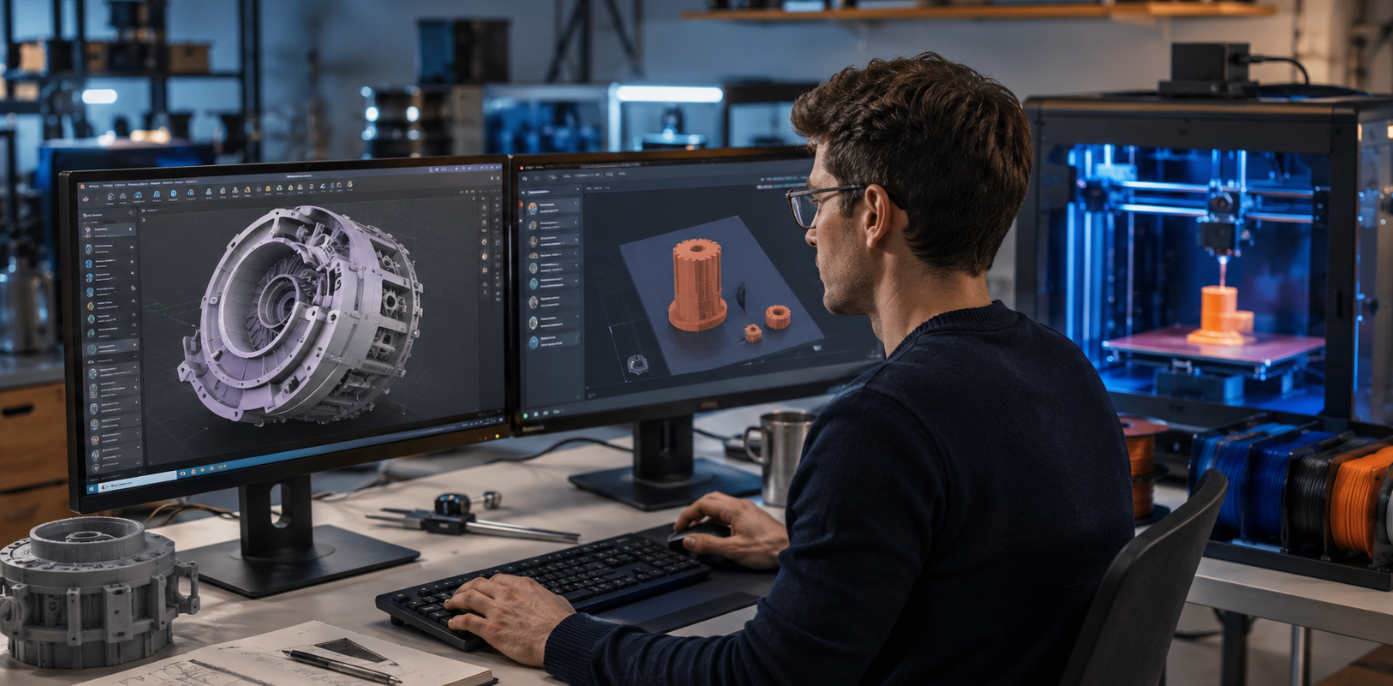
The best 3D modeling software for 3D printing depends on your goal. For beginners, Tinkercad is the easiest free option. For functional parts, Fusion 360 and FreeCAD give parametric precision. For miniatures and organic art, Blender and ZBrush lead. For fast ideas, AI tools like Meshy generate a model in seconds. Most makers mix two tools as their skills grow.
Choosing the best 3D modeling software for 3D printing is the step that decides whether your design prints cleanly or fails in the slicer. The software, not the printer, is where most print problems start: holes in the mesh, gaps, and non-watertight shapes.
This guide compares the top free and paid tools by skill level and use case, shows which one fits beginners, engineers, and artists, and explains how your software choice links to the right material.
Pick the wrong tool and you waste hours; pick the right one and you go from idea to print fast.
- Easiest to start: Tinkercad is free, browser-based, and gets you to your first STL in 30 minutes.
- Best all-rounder: Fusion 360 for precise functional parts; Blender for organic, artistic models.
- Best free: Tinkercad, FreeCAD, and Blender cover almost every need at zero cost.
- Fastest ideation: AI tools like Meshy turn text or images into a base model in seconds.
- Match material to design: use precise FDM filament for functional parts and detailed UV resin for fine models.
How to choose 3D modeling software for 3D printing

There is no single best tool for everyone. The right choice depends on what you build and how you like to work. Keep these five factors in mind before you commit:
- Ease of use. If you are new, pick something intuitive with strong tutorials so you can start modeling fast.
- Modeling type. Parametric CAD edits by changing numbers and is best for parts that must fit. Mesh and sculpting tools are best for organic shapes and detail.
- Watertight output. Your model must be a solid body with no gaps, also called manifold. Non-manifold files cause failed prints.
- Export formats. Confirm the tool exports STL, OBJ, 3MF, or STEP so your slicer can read it.
- Hardware and cost. Some tools run in a browser; others need a powerful PC. Free plans cover most hobby needs.
No software fixes a bad material match. Parametric CAD plus FDM suits functional parts; sculpting tools plus resin suit fine detail. We map software to the right Siraya Tech material in Table 2 below.
| Software | Best for | Skill level | Modeling type | Price |
|---|---|---|---|---|
| Tinkercad | First-time beginners | Beginner | Block building | Free |
| Meshy AI | Fast concept ideas | Beginner | AI-generated | Free / Paid |
| SketchUp | Quick simple models | Beginner | Push-pull | Free / Paid |
| Fusion 360 | Functional parts, engineers | Intermediate | Parametric CAD | Free / Paid |
| FreeCAD | Open-source CAD | Intermediate | Parametric CAD | Free |
| Blender | Art, miniatures, jewelry | Advanced | Mesh / sculpt | Free |
| Rhino 8 | Precise curves, jewelry | Advanced | NURBS | Paid |
| ZBrush | High-detail sculpting | Advanced | Sculpting | Paid |
| SOLIDWORKS | Pro mechanical design | Expert | Parametric CAD | Paid |
Best 3D Modeling Software for beginners

Tinkercad: Easiest free starting point
Tinkercad is the most beginner-friendly tool on this list. It runs in your browser with no download, and its drag-and-drop blocks let you build name tags, phone stands, cable clips, and simple parts in minutes.
It exports straight to STL and OBJ, so every major slicer opens your file with no conversion. The trade-off: as a mesh tool, it struggles with precise curves and complex parts.
For most beginners, it still covers the large majority of what you will ever want to print.
Meshy AI: fastest from idea to model
The hardest part of modeling is starting. Meshy lets you describe what you want, or upload an image, and generates a base 3D model in seconds.
It does not replace careful modeling, but it gives you something to refine right away, which is perfect for experiments and creative pieces.
You will still move the file into a CAD or sculpting tool when you need exact dimensions or fine detail.
SketchUp: quick and simple modeling
SketchUp is loved for fast, push-pull modeling and simple layouts. It is easy to learn for quick concepts.
The catch for printing is that it is a surface modeler, so it can create non-watertight models that need fixing before they print. Extensions help, but expect some cleanup.
Best for functional and mechanical parts

Autodesk Fusion 360: powerful parametric modeling
Fusion 360 is the go-to for parts that must fit, align, or move: brackets, enclosures, gears, and mechanical components.
You build with measurements and constraints, so changing one number updates the whole model.
A free personal plan covers hobby use, and paid plans add full manufacturing workflows. The trade-off is a real learning curve and heavier hardware demands.
FreeCAD: best free parametric CAD
FreeCAD gives you parametric, dimension-driven modeling without paying for commercial CAD. It is ideal for functional parts and a strong free path into engineering design.
The interface is less polished than paid tools and can feel clunky, but the community support is large and the price is zero forever.
SOLIDWORKS: professional engineering standard
SOLIDWORKS is built for professional mechanical design and design-to-manufacturing workflows. It offers full parametric assemblies and built-in simulation to test for weak points before you print.
There is an affordable Makers plan for personal use, but the full version is costly, hardware-hungry, and has a steep learning curve.
Best 3D Modeling Software for miniatures, jewelry, and organic art
Blender: free powerhouse for organic models
Blender is free, open-source, and capable of almost anything, from sculpting characters to detailed figurines.
Its 3D Print Toolbox flags non-manifold edges and bad overhangs before you export, which saves failed prints.
It shines for organic shapes, jewelry, and miniatures, but it has a steep learning curve and no parametric workflow, so it is not the fastest path for precise mechanical parts.
ZBrush: digital clay for fine detail
ZBrush is the industry favorite for high-detail sculpting, often called digital clay.
It handles huge polygon counts and gives precise control over surface texture, which makes it a top pick for character models, miniatures, and figurines.
Remember to decimate or simplify the mesh before exporting to STL so it stays printable.
Rhino 8: precise curves and NURBS
Rhino uses NURBS modeling for mathematically smooth curves, which makes it excellent for jewelry, product design, and complex curved surfaces.
With the Grasshopper add-on you get parametric control, and the ShrinkWrap feature can seal non-manifold models into watertight prints.
The learning curve and one-time price are higher, but the precision is hard to beat.
Export formats you need to know
Before modeling, make sure your software exports a format your slicer accepts.
These four cover almost every job:
- STL — the universal format for slicers. Best for simple, single-color prints.
- 3MF — stores geometry plus color and material data in a smaller file. Best for multi-color or multi-material prints.
- STEP — uses precise math curves, not mesh. Best for functional and mechanical parts that must fit exactly.
- OBJ — stores color and texture data. Good for artistic prints, though some slicers may not support it.
Match your software to the right material
Software gets you a clean file; the material decides how the finished print looks and lasts. Here is how common workflows pair with the right Siraya Tech resin or filament.
| If you model in | You are likely printing | Recommended material |
|---|---|---|
| Fusion 360 / SOLIDWORKS | Functional parts, brackets, gears | Fibreheart Engineering Filament |
| FreeCAD | Mechanical parts that must fit | Fast ABS-Like Resin or filament |
| Blender / ZBrush | Miniatures & figurines | Fast ABS-Like Resin |
| Rhino 8 | Jewelry for metal casting | Cast – Castable Resin |
| Any CAD (flexible parts) | Phone cases, grips, wearables | Flex TPU Filament |
| Any CAD (high-temp use) | Models near heat, tooling | Sculpt – High Temp Resin |
| Any tool (molds) | Food-safe molds, casts | Defiant Platinum Silicone |
| Any tool (display pieces) | Smooth, layer-line-free parts | Aegis Coating System |
Practical tips for picking your tool
Most makers do not stick to one program. A smarter approach is to think in stages:
- Start simple. Learn how models behave in Tinkercad or by generating a base with Meshy.
- Level up by need. Move to Fusion 360 or FreeCAD when you need precise, parametric parts.
- Match tool to printer. Fine detail and smooth surfaces suit resin (SLA); strong functional parts suit FDM filament.
- Always check watertightness. Use a tool with a repair feature, or fix files in your slicer before printing.
Pick your software and start printing
The best 3D modeling software for 3D printing is the one that matches your skill and project, not the one with the longest feature list.
Beginners should start free with Tinkercad, engineers should reach for Fusion 360 or FreeCAD, and artists should sculpt in Blender or ZBrush.
Whichever tool you pick, a clean watertight file is only half the job.
The right resin or filament is what turns that file into a strong, sharp, finished print. Choose your software, pair it with the right Siraya Tech material, and make your next print your best one.
Frequently asked questions
What is the best 3D modeling software for beginners in 3D printing?
Tinkercad is the most beginner-friendly choice. It runs in a browser, needs no download, and uses simple drag-and-drop blocks, so you can create your first printable STL file in about 30 minutes. AI tools like Meshy are also great for beginners because they generate a starting model from text or an image. Both let you learn without a steep learning curve.
What is the best free 3D modeling software for 3D printing?
Tinkercad, FreeCAD, and Blender are the strongest free options. Tinkercad is best for simple beginner models, FreeCAD is best for precise parametric and mechanical parts, and Blender is best for organic art, jewelry, and miniatures. Together they cover almost every 3D printing need at zero cost, which is why many makers use more than one.
What is the best program to create STL files for 3D printing?
Fusion 360 and Blender are top choices for producing clean, print-ready STL files, with Fusion 360 best for precise parts and Blender best for detailed art. Tinkercad exports STL directly and is ideal for simple shapes. AI tools like Meshy can generate an STL quickly from a prompt or image, which speeds up early design before you refine it elsewhere.
Is CAD or mesh software better for 3D printing?
It depends on the object. CAD software (Fusion 360, FreeCAD, SOLIDWORKS) is parametric and precise, so it is better for functional parts that must fit, align, or move. Mesh and sculpting software (Blender, ZBrush) is better for organic, detailed, or artistic shapes like figurines and jewelry. Many makers use both: CAD for structure and mesh tools for detail.
How do I fix a broken or non-watertight model before printing?
A non-watertight, or non-manifold, model has gaps that cause failed prints. Blender includes a 3D Print Toolbox that flags and helps fix these issues. Rhino's ShrinkWrap and tools like Microsoft 3D Builder can seal a model into a solid skin. Most slicers, including Bambu Studio, PrusaSlicer, OrcaSlicer, and Cura, also have a built-in repair option for small holes right before you print.