
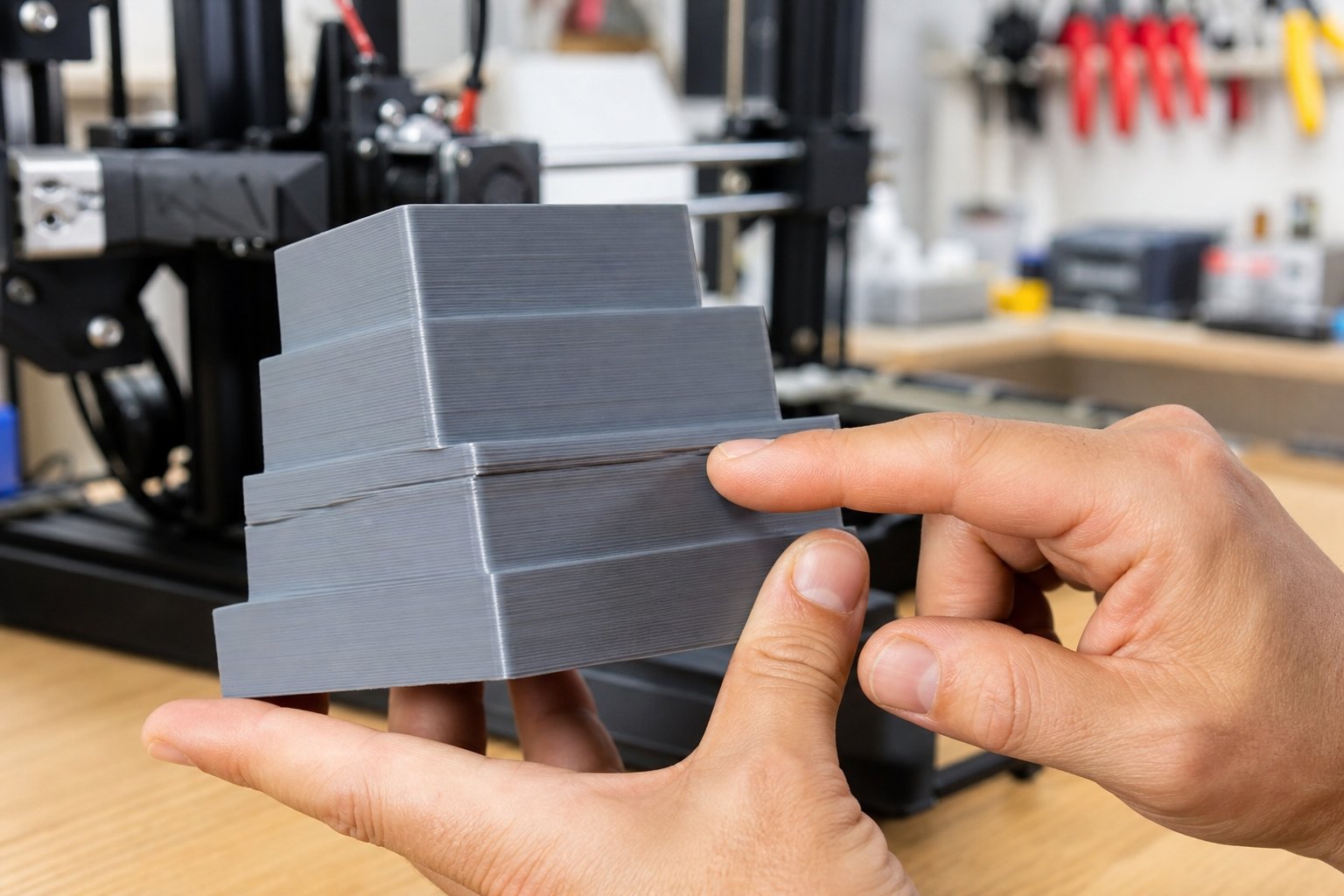
Layer shifting can turn a perfect 3D model into a crooked, stepped mess. If your print suddenly moves to the side halfway through, you're dealing with a 3D print layer shift. The good news is that most layer shifting problems are easy to fix once you understand what causes them.
This guide walks through exactly how to fix layer shifting, how to tell which axis and which cause you're dealing with, and how to keep it from coming back on your next long print.
⚙️Key Takeaways
- •A 3D print layer shift happens when the printer skips steps on the X or Y axis
- •Loose belts and pulleys are the most common causes
- •High print speed and acceleration can trigger layer shifting
- •Overheating stepper motors or stepper drivers may cause skipped steps
- •Regular maintenance prevents most layer shift issues
- •High quality materials such as Siraya filaments and resins help ensure smoother, more reliable printing
Understanding 3D Print Layer Shift and Why It Happens

A 3D print layer shift happens when the printer loses position during movement. This causes layers to shift sideways instead of stacking neatly on top of each other.
When a motor skips steps or movement is blocked, the printer thinks it's in one spot while it's actually somewhere else. The result is misaligned layers and a ruined print.
What a Layer Shift Looks Like
Layer shifting can show up as a sudden horizontal jump in the print, a staircase effect on one side, a full offset that continues for the rest of the print, or small repeated shifts scattered throughout the model. It usually affects the X axis or Y axis, but sometimes both.
What Causes Layer Shifting in 3D Printing
To fully understand how to fix layer shifting, you need to know what causes it. Most problems fall into mechanical, motion, or cooling categories.
Loose or Improper Belt Tension
Belts control movement on the X and Y axes. If they're too loose, the motor pulley can spin without properly moving the axis. Signs of loose belts include sagging or floppy belts, clicking sounds during fast moves, and small repeated layer shifts. Belts that are too tight can also strain motors and cause skipped steps, so this isn't a "tighter is always better" situation.
Loose Motor Pulleys and Set Screws
Each stepper motor has a pulley attached with a small set screw. If that screw is loose, the motor shaft spins but the pulley doesn't move properly. This often causes sudden large shifts, a shift that happens only once, or prints that fail at the same height every time.
Printing Too Fast or With High Acceleration
High speed increases stress on the printer. Rapid direction changes can cause motors to skip steps. Common motion causes include high print speed, high travel speed, high acceleration settings, and high jerk settings. Reducing speed often fixes layer shifting immediately, which makes it a good first thing to try.
Stepper Motor or Stepper Driver Overheating
Stepper drivers are more commonly the source of overheating issues, but both motors and drivers can contribute to skipped steps. When drivers overheat, they may enter thermal protection and temporarily reduce power or shut down. Symptoms include layer shift after several hours, a hot motor housing, and random mid-print failure. Improved cooling usually solves this issue.
Mechanical Obstructions
Anything that blocks movement can cause a 3D print layer shift. Examples include cables snagging, debris on rails, warped prints curling upward, or wheels that are too tight. Even a small obstruction can force the motor to skip steps.
How to Diagnose Layer Shifting Before You Fix It
Before making changes, inspect your printer carefully. A quick check can save time and prevent guesswork later.
Identify the Affected Axis
Look at your failed print and note the direction of the shift. A left or right shift means the X axis, while a front or back shift means the Y axis. Knowing the axis helps narrow down which belt, pulley, or motor to inspect first.
Perform a Manual Movement Test
Turn off the printer and gently move the bed and print head by hand. Check for resistance, grinding, tight spots, or uneven movement. Movement should feel smooth and consistent across the entire travel range.
Inspect Hardware Quickly
Run through a short checklist: belt tension should feel firm like a guitar string, pulleys should be tight on motor shafts, frame bolts should be secure, and rails should be clean and lightly lubricated. If anything feels loose, fix it before printing again.
How to Fix Layer Shifting Step by Step

Now let's go through exactly how to fix layer shifting in a practical, simple order.
Step 1: Adjust Belt Tension Correctly
Belts should feel tight but not overstretched. Press gently in the middle of the belt. It should resist but still flex slightly. To fix belt tension, tighten using the belt tensioner if available, reposition and secure manually if needed, and avoid pulling too hard. Proper belt tension solves many 3D print layer shift issues on its own.
Step 2: Tighten Motor Pulleys Securely
Locate the small set screw on each motor pulley. Use the correct hex key to tighten it firmly. Make sure the screw presses against the flat side of the shaft, the pulley doesn't wiggle, and both X and Y pulleys are checked. A loose pulley is one of the top causes of layer shifting, so don't skip this step even if the belts already feel fine.
Step 3: Lower Print Speed and Acceleration
If you print fast, reduce speed by 10 to 20 percent and test again. Recommended safe ranges for many PLA prints fall around 40 to 60 mm per second for print speed, with moderate acceleration settings. Slower speeds reduce stress on belts and motors.
High quality filaments also help maintain smoother extrusion and dimensional consistency. While filament quality isn't a primary cause of skipped steps, consistent materials can reduce warping and collision risks. Siraya offers advanced filaments such as PETG-CF, ABS-CF, ABS-GF, ASA-GF, and other reinforced materials that provide strength and stability. Carbon fiber infused options share many properties of traditional materials but add greater hardness and reduced warping, which can help reduce collision-related layer shifts.
Step 4: Improve Cooling for Stepper Motors and Drivers
Touch the motor housing after a long print. It should be warm but not too hot to touch. To improve cooling, add a small fan, improve airflow inside the enclosure, and keep electronics ventilated. Consistent temperatures help prevent skipped steps, especially from overheating stepper drivers.
Step 5: Secure the Frame and Reduce Excess Mechanical Stress
A shaky surface can increase mechanical stress and may worsen existing motion issues over time. Make sure the printer sits on a sturdy table, all frame screws are tight, and the gantry is square. Reducing unnecessary movement improves overall print accuracy.
Step 6: Prevent Nozzle Collisions
Warped prints can curl upward and collide with the nozzle. This sudden impact can cause a layer shift. To prevent this, improve bed adhesion, level the bed properly, and use appropriate temperatures for your material.
Reliable materials also reduce warping. Siraya provides high performance 3D printing filaments and specialty resins such as Tenacious resin for impact resistance and castable resin for precision models. Stable materials reduce the risk of curling and collision.
Reduce Collision Risk With Stable, Reliable Materials
Warping and curling are two of the most common indirect causes of layer shifting. Browse Siraya's reinforced filaments and resins built for consistent dimensional accuracy.
Explore Siraya Materials →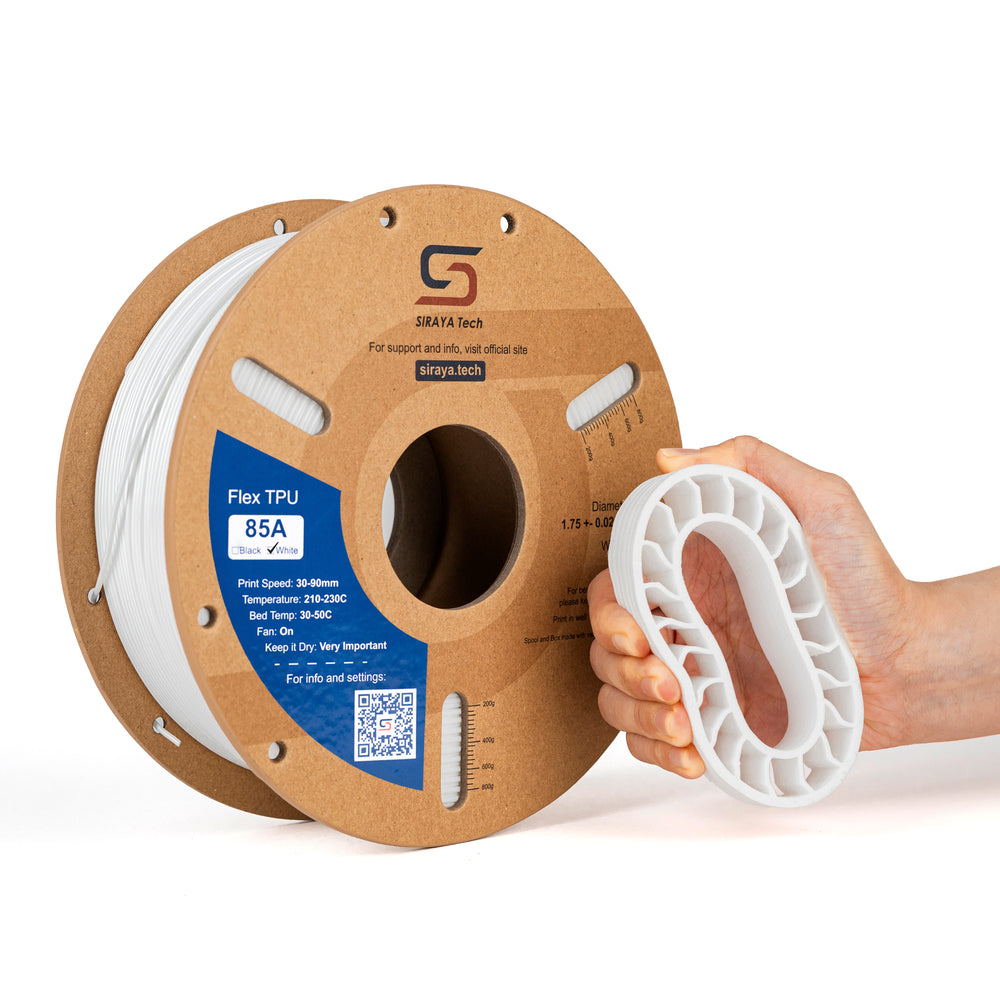


How to Prevent Layer Shifting in Future Prints
Prevention is easier than repair. A few simple maintenance habits keep your printer running smoothly for the long haul.
Follow a Basic Maintenance Routine
Check your printer regularly: inspect belts monthly, tighten bolts, clean rails, and remove dust and debris. Routine care prevents unexpected 3D print layer shift problems before they start.
Use Balanced Slicer Settings
Extreme settings increase risk. Keep speed, acceleration, and travel moves reasonable rather than pushing every setting to its limit. If you upgrade to stronger materials like ABS-CF Core or ASA-GF, remember they may require slower speeds compared to standard PLA. Adjust gradually and test before committing to a long print.
Choose Stable and Reliable Materials
Material quality affects print consistency and reliability. While it's not usually the direct cause of positional layer shifts, poor material performance can increase warping and collision risk.
Siraya offers premium 3D printing filaments, engineering grade resins, and platinum silicone crafting materials for advanced projects. High consistency materials improve layer bonding and reduce printing issues overall.
Advanced Solutions for Persistent Layer Shifting

If the basic steps don't solve the issue, deeper adjustments may be needed. These changes require care but can permanently fix stubborn problems.
Adjust Stepper Driver Current
Stepper driver current controls motor power. If current is too low, the motor may skip steps. Increase current slightly if the motor skips under load or if belts are tight but shifting continues. Avoid setting it too high, as that can cause overheating and potential driver shutdown.
Update Firmware Motion Limits
Firmware controls acceleration and speed limits. Lowering acceleration values can prevent skipped steps. Adjust maximum acceleration, maximum travel speed, and jerk control settings in small increments, since they often make a bigger difference than they appear to on paper.
Conclusion
Layer shifting can be frustrating, but it's usually easy to fix once you know where to look. Checking belts, tightening pulleys, lowering speed, and improving cooling will solve most problems quickly. Regular maintenance and stable slicer settings prevent issues before they start.
For more helpful guides and expert tips on improving your 3D printing results, explore the rest of the Siraya Tech blog. You can also upgrade your projects with high quality Siraya 3D printing filaments, advanced resins including Tenacious and castable options, and platinum silicone crafting materials designed for superior performance and durability.
Frequently Asked Questions
How to fix layer shifting in 3D printing?
Start by checking belt tension and tightening any loose pulleys. Lower your print speed and acceleration settings to reduce stress on the motors. Make sure nothing blocks the movement of the print head or bed, and improve motor and driver cooling to help prevent skipped steps.
What causes layer shifting?
Layer shifting is usually caused by skipped motor steps. This can happen due to loose belts, loose pulleys, overheating stepper drivers or motors, or printing too fast. Mechanical obstructions and frame instability can also trigger shifts. Identifying the root cause is key to fixing it.
How to prevent layer shifting?
Perform regular maintenance on belts, pulleys, and rails. Use moderate speed and acceleration settings instead of extreme values. Keep your printer on a stable surface and ensure proper cooling. Choosing high quality materials also improves consistency and reliability.
Can a loose belt cause layer shifting?
Yes, a loose belt is one of the most common causes of a 3D print layer shift. When the belt is slack, the motor pulley may spin without properly moving the axis. This leads to skipped steps and misaligned layers. Tightening the belt usually solves the issue quickly.
Can overheating stepper drivers cause layer shifts?
Yes, overheating drivers can temporarily shut down or reduce power. This causes the motor to miss steps during printing. You may notice shifts during long prints or when printing at high speeds. Improving cooling and airflow helps prevent this problem.