
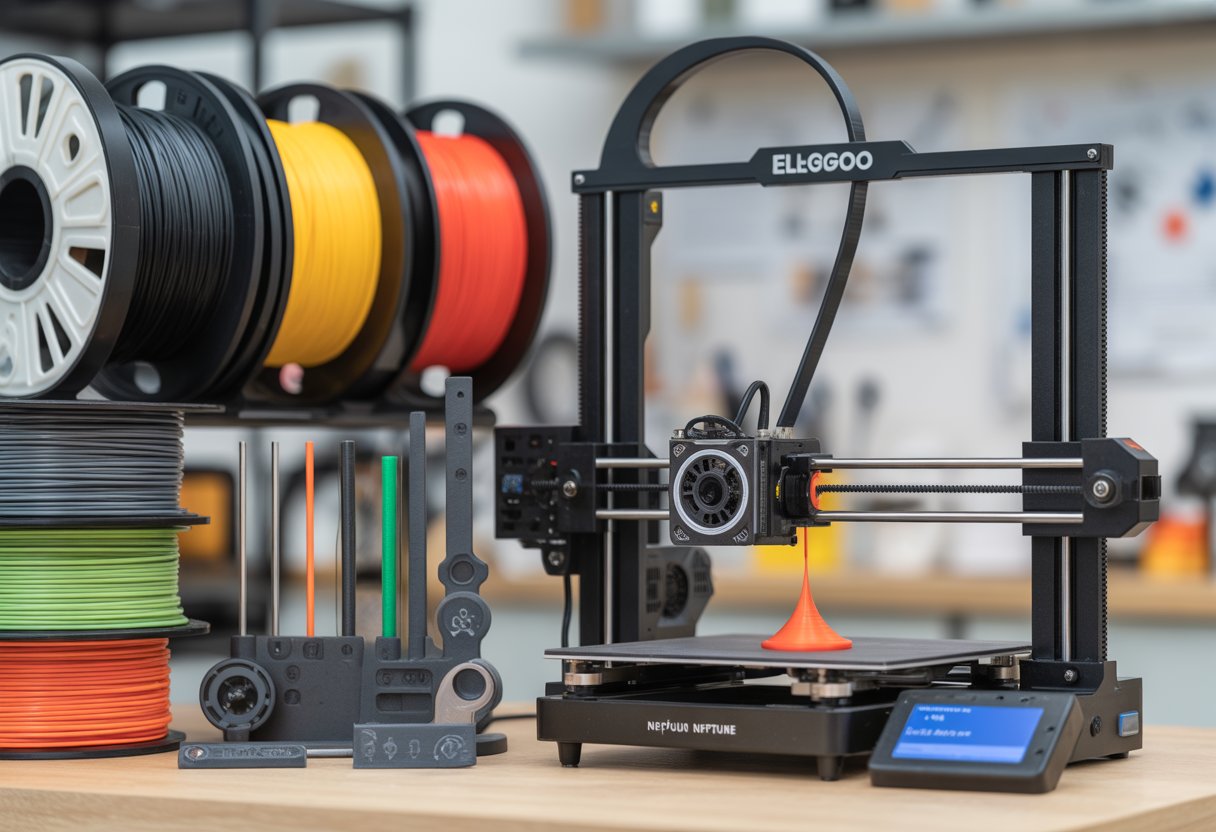
Elegoo Neptune Filament Guide setup can fix many common 3D printing problems fast. You get smoother filament flow, fewer tangles, and steadier prints when you pair the right guide with clean settings on your Elegoo Neptune 4. This upgrade helps your printer feed filament at a steady angle and avoid skips.
You also need the right slicer settings to match the guide. Simple Cura tweaks, steady speeds, and clean paths matter more than fancy parts. When you tune both together, your Elegoo printer runs with less stress and better results.
Read on to learn the settings and tips that keep your filament moving right and your prints clean.
Key Takeaways
- A good filament guide improves feed and print quality
- Proper settings matter as much as the hardware
- Small tweaks prevent jams and failed prints
Want to discover the full range of available materials? Visit Siraya Tech's 3D Printer Filament collection to find everything from standard PLA to engineering-grade specialty filaments.
Choosing and Installing a Filament Guide

A filament guide helps control how filament moves into your printer. On the Elegoo Neptune 4, the right guide can reduce drag, improve feeding, and make setup easier. Picking the right type and installing it the right way matters.
Why Use a Filament Guide on Elegoo Neptune 4
The Neptune 4 uses a direct drive extruder, so filament feeds straight into the print head. This setup works best when filament stays aligned and smooth.
A filament guide keeps the filament from rubbing on the frame or pulling at sharp angles. This helps prevent grinding, uneven extrusion, and false runout alerts.
You also gain more freedom in spool placement. Many users place the spool off the printer to reduce weight and vibration. A guide helps the filament enter the sensor and extruder cleanly, even from the side or rear.
Types of Filament Guides and Compatibility
3D Printer Filament guides come in a few common styles. Most mount near the filament sensor or on the top frame.
Common types include:
- Fixed guides that hold filament in one path
- Roller or swivel guides that move with the filament
- Sensor combo guides that replace or support the stock sensor mount
Neptune 4 guides often fit other Elegoo models, but not always. Frame size, sensor location, and top rail width can change between versions.
Always check model notes for Neptune 4 or Neptune 4 Pro support. Some side guides may need trimming on Plus or Max models.
3D Printing a Custom Filament Guide

Fibreheart PETG-CF HF Filament
Many Neptune 4 3D printer filament guides come as free STL files. You can print them at home with basic settings. PLA and PETG both work well. Use a 0.4 mm nozzle and 0.2 mm layer height for clean results.
Some designs need support, especially around PTFE tube holes. Others print flat with no support. Print orientation matters. Follow the preview image if the designer provides one. This helps strength and smooth filament travel.
Check fit before final use. Light sanding can fix tight spots.
Installing and Adjusting the Filament Guide
Start with the printer powered off and cool. Remove the filament if needed.
Most guides snap on or use the same screw as the stock filament sensor. Keep the sensor aligned so it reads filament correctly.
After mounting, feed filament by hand. Watch the path from the spool to the extruder.
Adjust the guide so the filament:
- Enters the sensor straight
- Does not rub the frame
- Moves freely during fast head motion
Run a short test print. Listen for clicking and watch for smooth feeding. Adjust again if needed.
ABS needs careful temperature management and proper ventilation for best results. Learn everything about this durable material by reading our comprehensive guide: What is ABS Filament? Uses, Pros, and Cons for 3D Printing.
Essential Cura Settings for Elegoo Neptune 4

Good Cura settings help your Elegoo Neptune 4 print clean parts. The right printer profile, layer height, speed, and first layer setup matter most. Saving and reusing Cura profiles also saves time and keeps results steady.
Printer Profile Setup and Machine Settings
Start by adding the Elegoo Neptune 4 as a custom printer in Cura if it does not appear by default. Use a build volume of 225 × 225 × 265 mm and set the nozzle size to 0.4 mm.
Check these key machine settings:
- G-code flavor: Marlin
- Heated bed: Enabled
- Retraction: Enabled
- Z-offset: Set on the printer, not in Cura
Use a Cura profile made for the Neptune 4 when possible. Community profiles often work better than generic ones. After loading a profile, review travel limits and speeds to match your printer.
Recommended Layer Height and Print Speed
Layer height controls detail and print time. For most filament guide parts, use 0.2 mm. This height gives a clean surface and steady strength.
Use these common values as a starting point:
|
Setting |
Value |
|
Layer height |
0.2 mm |
|
Initial layer height |
0.24 mm |
|
Print speed |
150 mm/s |
|
Outer wall speed |
60 mm/s |
The Neptune 4 can print fast, but slow down walls for better quality. If you see ringing or rough edges, reduce speed by 10–20 mm/s.
First Layer Settings for Filament Guides
A strong first layer keeps filament guides from lifting or warping. Set the first layer speed to 20–30 mm/s. This helps the filament stick to the bed.
Use a bed temperature that matches your filament. For PLA, start at 60°C. Set the nozzle to 200–210°C for the first layer.
Enable these Cura settings:
- Initial layer line width: 120%
- Initial layer flow: 100–105%
- Build plate adhesion: Brim, 5–8 lines
Level the bed before each print. A clean bed also helps more than any setting.
Exporting and Importing Cura Profiles
Saving your Cura profile lets you reuse your best Cura settings. Click Profile > Manage Profiles, then export your current setup. Name it clearly, like Neptune 4 PLA Filament Guide.
To import a profile, open Cura and load the file from the same menu. Cura applies all print settings at once, which avoids missed changes.
Keep separate profiles for each filament type. This makes it easy to switch materials without guessing or re-tuning settings every time.
Need consistent PLA that feeds smoothly and prints cleanly? Explore our PLA Filament for 3D Printing collection for high-quality materials with tight diameter tolerances.
Fine-Tuning Print Quality: Filament Guide Influences

Your filament path affects how smooth prints look and how often errors show up. Small changes to retraction, bed setup, and temperature help your Elegoo Neptune 4 Pro run better with Klipper firmware.
Retraction Settings for Smooth Feeding
Retraction settings control how filament pulls back during moves. Poor settings cause stringing, blobs, or thin spots. The Neptune 4 Pro uses a direct drive extruder, so you need short and careful retraction.
Start with these safe ranges:
|
Setting |
Typical Range |
|
Retraction distance |
0.6–1.2 mm |
|
Retraction speed |
20–35 mm/s |
If you see strings, increase speed a little. If you hear clicking or see grind marks, lower speed or distance. Klipper firmware reacts fast, so small changes matter. Always test one change at a time. Keep filament clean and dry so feeding stays smooth.
Print Bed Adhesion and Leveling
Good bed adhesion starts with a level bed. If the bed tilts, filament will not stick evenly. This causes warped corners or failed prints. Check bed screws and make sure the X-axis sits level with the bed.
Use these steps:
- Run bed leveling in Klipper
- Clean the bed with warm water and mild soap
- Avoid touching the surface with your fingers
Set the first layer height slightly higher if prints look squished. Adjust Z-offset in small steps. A steady first layer helps filament flow evenly from start to finish.
Print Bed Temperature and Material Matching
Each filament needs the right bed temperature. If the bed stays too cool, prints lift. If it runs too hot, parts soften and lose shape.
Use these common ranges:
|
Material |
Bed Temp |
|
PLA |
55–60°C |
|
PETG |
70–80°C |
|
ABS |
90–100°C |
Match bed heat to the filament you use. The Neptune 4 Pro heats fast, so give it time to stabilize. Keep fans low on the first layer. Stable heat helps filament stick and stay flat.
This guide covers printer-specific settings, but there's a whole world of filament options to explore. Expand your material knowledge by browsing our article, 3D Filament Types: Complete Guide for Every 3D Project.
Filament-Specific Settings and Tips
A filament guide helps keep tension low and feed smooth. Your settings still matter, and they change by material.
PLA Filament: Best Practices
PLA filament works well with a filament guide because it feeds easily. Aim for smooth, steady pull from the spool. Keep the guide clean so PLA dust does not build up.
Use simple, safe settings to start. Then fine-tune with a temperature tower to find the best nozzle heat for your brand.
PLA starting settings
|
Setting |
Common Range |
|
Nozzle temp |
195–215 °C |
|
Bed temp |
55–65 °C |
|
Print speed |
50–70 mm/s |
|
Retraction |
Short and slow |
Mount the spool so it spins freely. Avoid sharp bends before the extruder. If you hear clicks or see rough layers, lower speed. Small changes help more than big ones.
TPU Printing With a Filament Guide

TPU printing needs extra care. TPU bends easily, so the guide must line up straight with the extruder. Any side pull can cause jams.
Speed matters more than temperature with TPU. Keep retraction low to avoid buckling inside the path.
TPU tips that help
- Print slow, often 20–30 mm/s
- Use low retraction or turn it off
- Keep nozzle temp stable, often 210–230 °C
- Avoid tight guide angles
Check the filament path by hand before printing. If it resists, fix the path first.
Adapting Settings for Other Filaments
Other filaments need small changes when you use a guide. PETG likes steady feed and low drag. ABS needs heat control more than path control.
Run a temperature tower for any new filament. It shows stringing, gaps, and layer strength fast. Change one setting at a time.
Quick adjustments
- PETG: slow retraction, higher nozzle temp
- ABS: stable bed heat, enclosed space
- Silk PLA: slower speed, gentle pull
Watch the spool during the first layers. If it jerks or stops, fix the guide angle or loosen the holder.
Proper filament loading and unloading techniques work across most FDM printers. Learn the process step-by-step by reading How to Change Filament Ender 3: Easy Step-by-Step Guide.
Troubleshooting and Maintenance Tips
Filament problems often come from poor feeding, dirt buildup, or worn parts. You can fix most issues on an Elegoo Neptune 4 with small checks, light cleaning, and simple setting changes.
Common Feeding Issues and How to Fix Them
Filament may grind, skip, or stop moving. This often means the path is blocked or tension is off.
Check these first:
- Make sure the filament spool spins freely.
- Look for sharp bends in the filament path.
- Clean the extruder gear with a small brush.
If the nozzle leaks plastic before a print, heat it to the right temp and wipe it clean. This helps stop clogs and blobs. Keep temps matched to your filament type. PLA usually prints cooler than PETG.
Quick fixes by problem:
|
Problem |
Likely Cause |
Fix |
|
Clicking extruder |
Low tension |
Tighten the idler a little |
|
Grinding marks |
Dirty gear |
Clean gear teeth |
|
Filament jams |
Heat creep |
Lower temp or add cooling |
Maintaining Your Filament Guide
A clean guide keeps filament moving smooth. Dust and plastic bits cause drag over time.
Wipe the guide and tubes every few weeks. Use a dry cloth or compressed air. Do not use oil. Oil can ruin filament and prints.
Check that screws stay tight. Loose mounts cause wobble and uneven feed. On the Neptune 4, also check the runout sensor path. Make sure filament enters straight.
Simple care routine:
- Clean guide and tube monthly
- Check screws after long prints
- Store filament dry to reduce dust
When to Adjust Settings or Replace Parts
Adjust settings when you change filament or see repeat issues. Raise temp if layers look weak. Lower temp if you see strings or oozing.
Replace parts when fixes stop working. Nozzles wear out and cause poor flow. PTFE tubes can burn or shrink near heat.
Replace parts if you see:
- Deep grooves in the extruder gear
- Burn marks on the tube
- Nozzle clogs that return fast
Most users replace nozzles every few months with regular use.
Ready to explore flexible materials? Check out Siraya Tech's Flex TPU Filament collection for durable, elastic filaments perfect for functional parts and creative projects.
Wrap Up
A proper filament guide paired with dialed-in Cura settings transforms your Elegoo Neptune 4 from good to great. Small tweaks to retraction, speed, and temperature prevent most common print failures.
Regular maintenance keeps feeding smooth and prints consistent. Quality filament matters just as much as hardware and settings.
iraya Tech offers reliable filament engineered for tight diameter tolerances and smooth feeding on the Elegoo Neptune and other FDM printers. Their PLA, PETG, TPU, and specialty materials deliver consistent results across different print speeds and temperatures.
When you combine the right guide setup with quality Siraya Tech filament, your prints come out cleaner with fewer headaches.
Looking for reliable filament tested for quality and consistency? Browse Siraya Tech's Elegoo Filament Collection for materials engineered to deliver smooth feeding and excellent print results.
Frequently Asked Questions
What's the best temp to print PLA on the Elegoo Neptune?
Print PLA at 200–210°C on the nozzle. Set the bed to 60°C. If your PLA looks stringy, lower the nozzle temp by 5 degrees. If layers look weak, raise it a little.
How do you keep the filament from tangling up?
Always load filament with light tension on the spool. Make sure the loose end never slips under another loop. Use a filament guide or smooth spool holder. When not printing, clip the filament end to the spool.
Got any tricks for smoothing out those first layers?
Level the bed and set the Z offset first. Slow the first layer to 20 mm/s and raise the nozzle temp by 5 degrees. Clean the bed with soap and water if prints won’t stick.
What's the ideal print speed for detailed minis?
Print minis at 30–40 mm/s. Slower speeds help small details look sharp. Use a low layer height like 0.12–0.16 mm. Keep cooling on after the first few layers.
Can you use PETG on this or stick to ABS and PLA?
You can print PETG with no problem. Set the nozzle to 230–245°C and the bed to 70–80°C. ABS can work, but it needs an enclosure. Without one, ABS may warp or crack.
How do you fix filament jams, any secret tips?
Heat the nozzle and pull the filament out by hand. If it sticks, try a cold pull with nylon or PLA. Check the nozzle for clogs and clean it if needed. Dry the filament, as moisture can cause jams.