
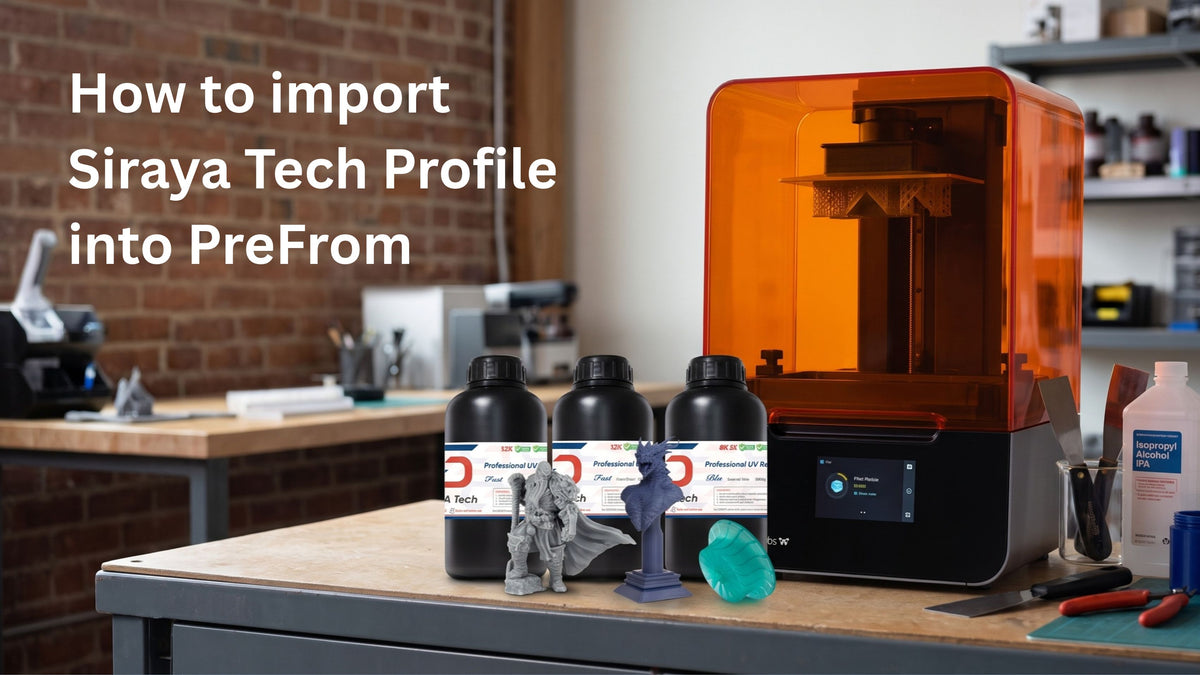
Formlabs printers powered by Open Material Mode unlock access to high-performance third-party resins. To eliminate guesswork and achieve dependable, repeatable print quality, Siraya Tech provides dedicated PreForm settings files (FPS) for our engineering and functional resins.
Follow this quick guide to import your Siraya Tech print settings into Formlabs PreForm and prepare your setup in minutes. (For Form Studio 1 exclusively)
Prerequisites
-
Download the appropriate PreForm profile for your resin from the Siraya Tech Print Settings Download Page.
-
If the download is a
.ziparchive, extract it to locate the.fpsprofile file before proceeding.
Step-by-Step Import Guide
Step 1: Select Your Printer
Launch PreForm. In the Job Setup panel on the left, click on the printer selection area and add your machine (e.g., select or add Form Studio 1).

Step 2: Select Open Material
In the Material dropdown section, navigate to the third-party material options and choose Open Material.

Step 3: Open Custom Print Settings
Locate the Print Settings menu directly beneath the material selection, click the dropdown, and select "Create or Import Custom Print Setting". This opens the Print Settings Editor.

Step 4: Import the FPS File
Inside the settings editor window, click the "Import FPS file" button. Browse your computer, select the FPS file you downloaded from Siraya Tech, and confirm.


Step 5: Verify the Parameters
Once imported, the custom profile parameters—including layer thickness, exposure parameters, and movement speeds—will populate on the screen. Take a moment to verify that the layer height matches your project goals.
Step 6: Return to the Main Job Setup Window
Close the Print Settings Editor window to return to the initial Job Setup screen. You will now see your newly imported Siraya Tech profile listed under your custom print settings.

Step 7: Apply the Configuration
Click "Apply" at the bottom of the Job Setup panel. This binds the custom profile and machine configuration to your current project workspace.
Step 8: Switching Between Siraya Tech Resins
If you work with multiple resins (such as Fast, Blu, or Castable), you can repeat this import process for each material. Once imported, switch between resin profiles at any time by selecting the desired setting from the Print Settings dropdown.

Tips for Best Results with Open Material Mode
-
Agitate Thoroughly: Ensure pigments and additives are evenly distributed by shaking the resin bottle thoroughly before filling the tank.
-
Keep Profiles Updated: Check the Siraya Tech download page periodically to ensure you are running the most up-to-date
.fpsfiles.
Happy printing!