
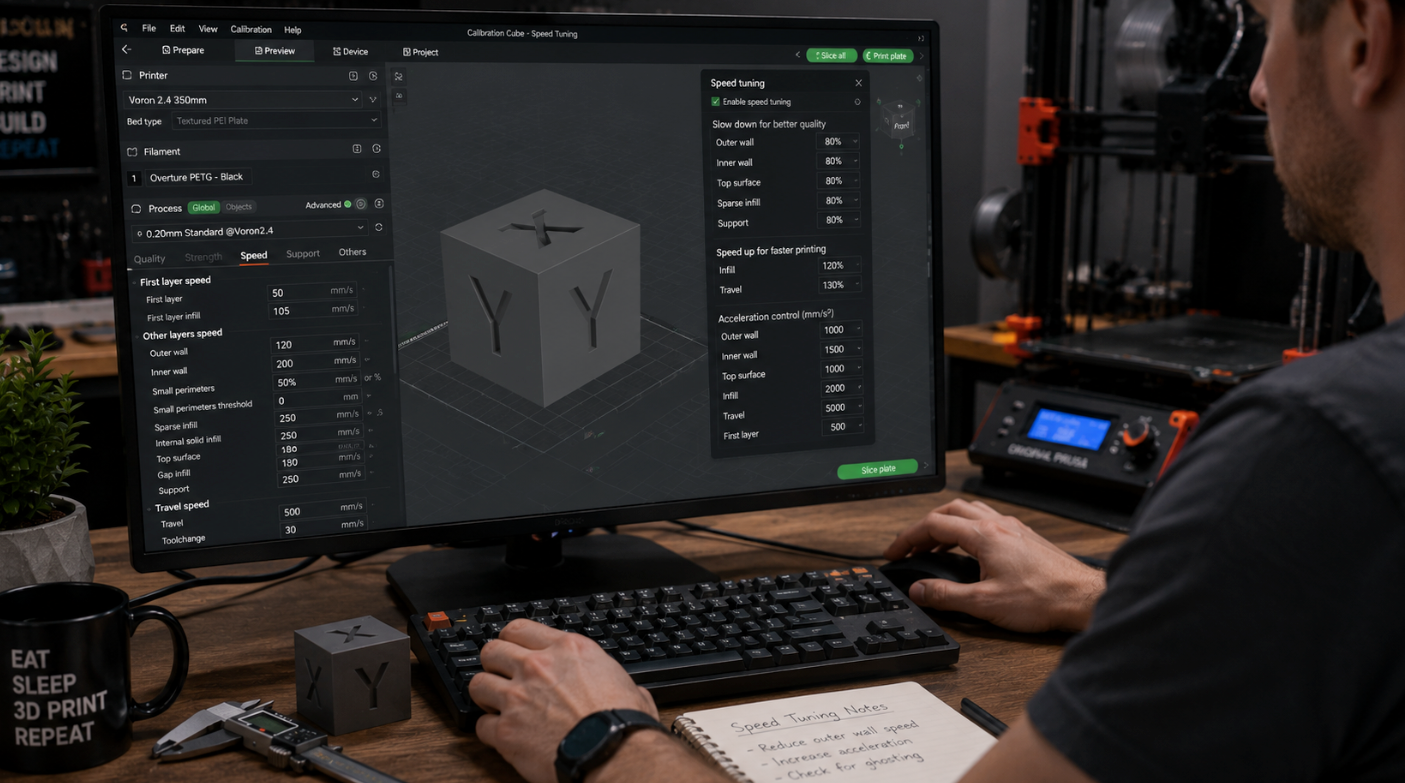
To fix ghosting and ringing, lower your print speed to 40 to 60 mm/s, drop acceleration to 500 to 1000 mm/s², and reduce jerk. Then tighten your X and Y belts, put the printer on a heavy, stable table, and lighten the print head. For the cleanest result, turn on input shaping in your firmware. Start with speed since it is the fastest fix.
If you see faint ripples or echo-like waves trailing behind corners and text on your prints, you need to know how to fix ghosting and ringing. These repeated patterns, also called rippling, come from tiny vibrations when the print head changes direction quickly.
The good news is that ghosting is one of the most common print problems and one of the easiest to fix, often with no new hardware.
This guide walks you through the causes, ranks the fixes from easiest to advanced, and shows how the right settings and material give you smooth, clean surfaces.
- Slow down first: lower speed, acceleration, and jerk. This is the quickest and most effective fix.
- Tighten up: check X and Y belt tension and tighten loose frame bolts and pulleys.
- Steady the base: place the printer on a heavy, solid table with damping pads.
- Lighten the load: reduce print head weight and secure cables to cut inertia.
- Go advanced: enable input shaping in firmware, then finish surfaces with a smoothing coating.
What is ghosting and ringing?
Ghosting and ringing are two names for the same problem: faint, repeated patterns or echoes on the surface of a print, usually along the X or Y axis. They show up most near sharp corners, edges, and embossed text.
The cause is mechanical vibration. When the nozzle makes a fast turn, the print head keeps wobbling for a split second, and that wobble gets stamped into the plastic as a shadow of the real edge.
To spot it, shine a flashlight across the surface at an angle, since the ripples are easier to see in raking light.
Read Related Article: How to Fix 3D Printing Stringing Issues: Causes & Solutions
What causes ghosting and ringing?

Almost every cause comes back to vibration and how well your printer controls it. The main triggers are:
- High speed, acceleration, or jerk. Fast moves and sudden direction changes create strong inertia that makes the frame and head shake.
- Loose belts or pulleys. Slack belts bounce as the head moves; over-tight belts stress bearings and cause resonance.
- A weak or wobbly frame. A flimsy stand or light frame lets vibration travel through the whole machine.
- A heavy print head or bed. More mass means more inertia, so the head keeps moving after a turn.
- Stepper motor resonance. Motors create tiny vibrations that get worse if they match the frame's natural frequency.
| Cause | Sign | Fix | Effort |
|---|---|---|---|
| Speed too high | Ripples worsen at speed | Lower speed, accel, jerk | Easy |
| Loose belts | Ghosting plus poor corners | Tighten X and Y belts | Easy |
| Unstable base | Worse on wobbly tables | Heavy table, damping pads | Easy |
| Heavy print head | Direct-drive setups | Lighten head, secure cables | Medium |
| Motor resonance | Ripples at set frequency | Enable input shaping | Medium |
| Weak frame | Whole machine flexes | Upgrade belts, brace frame | Advanced |
Step 1: Diagnose the problem first
Before changing anything, confirm it is ghosting and not another defect. Shine a bright flashlight across the print at a low angle and look for faint, repeated lines that follow each corner.
Then do a quick hardware check: gently wiggle the print head and bed to feel for play, and press on the belts to see if they feel firm or floppy.
A simple test cube or a ringing tower print makes the pattern easy to see, so you can compare before and after each change.
Change one thing at a time, then reprint, so you know which fix worked.
Ghosting is surface ripples from vibration. If you see large, sudden offsets in your layers instead, that is layer shifting from a different cause, like skipped steps or a slipping belt, and needs a different fix.
Step 2: Fix ghosting and ringing, easiest first
Lower speed, acceleration, and jerk

This is the fastest and most effective fix, and it needs no new parts. In your slicer, slow the print speed to 40 to 60 mm/s and test.
Drop acceleration to around 500 to 1000 mm/s², and keep jerk low, about 5 to 10 mm/s, so the head does not snap into direction changes.
Prints take a little longer, but the surface gets noticeably smoother and the corners sharper.
Tighten belts and check the frame
Loose belts are a top cause of ghosting. Check both X and Y belts for even tension; they should feel firm, not floppy, but not guitar-string tight.

Tighten frame bolts gently but firmly, and make sure pulleys are aligned and locked to the motor shafts. These quick checks often make a visible difference on their own.
Stabilize the printer base
Your printer's base matters as much as its settings. Place it on a solid, heavy table or bench so vibration has nowhere to travel.

Add rubber feet or vibration-damping pads to soak up motion, and keep the printer away from fans, washing machines, and speakers.
Foam and rubber pads can cut bounced vibration dramatically.
Reduce print head weight
Every gram adds inertia. Use lighter hotends and fans where you can, secure loose wiring so it does not drag, and make sure a direct-drive extruder mount is rigid and not flexing during travel moves. Less mass means the head settles faster after a turn, so fewer ripples reach your model.
Keep motion smooth and lubricated
Friction adds small vibrations too. Clean and lightly lubricate your lead screws, bearings, and rods every 200 to 300 print hours.
Smooth, even motion supports both cleaner surfaces and steady extrusion.
Step 3: Advanced fixes for stubborn ringing
Turn on input shaping
Input shaping, also called resonance compensation or vibration compensation, is a firmware feature that cancels out the printer's vibrations electronically. It is built into Klipper and many modern Marlin builds.
After you measure your printer's resonance, the firmware smooths fast moves so you keep speed and still get clean surfaces.
It is not a substitute for good belts and a stable frame, but combined with them it gives the best results.
Upgrade the frame and components
If ghosting remains after everything above, the frame itself may be flexing.
Steel-core belts hold tension better, low-vibration motors move more smoothly, and bracing or heavier frame parts stop vibration from spreading.
Stepper motor dampers and linear rails also help. These upgrades cost more and take time, so save them for severe cases.
How to prevent ghosting long-term
- Maintain on a schedule. Every 20 to 30 print hours, inspect and tighten belts, screws, and pulleys, and lubricate moving parts.
- Use moderate settings. Start with balanced speeds and conservative acceleration, then update firmware for features like input shaping.
- Invest in a stable setup. A sturdy frame, quality belts, and a dedicated stable stand pay off in every print.
- Design smart. Add chamfers or rounded edges to reduce sharp direction changes, and orient parts to ease axis stress.
- Test often. Run a quick calibration print now and then to catch new vibration early.
How material and finishing affect surface quality
Ghosting is mechanical, but the material and your finishing step decide how visible any surface flaw is in the final part.
Glossy and dark materials show ripples more; matte and textured ones hide them.
A smoothing or coating pass can erase faint marks entirely on display pieces.
| Goal | Why it helps | Recommended option |
|---|---|---|
| Hide faint surface marks | Matte finish scatters light | Matte PLA / PETG Filament |
| Smooth display pieces | Removes layer lines and ripples | Aegis Coating System |
| Sharp resin detail | Resin avoids motion ghosting | Fast ABS-Like Resin |
| Tough functional parts | Rigid material resists flex | Fibreheart Filament |
| Flexible parts | Soft filament needs slow speed | Flex TPU Filament |
| Best starting settings | Tested profiles cut guesswork | Tested Print Settings |
Soft filaments like TPU vibrate and ooze more, so they show ringing more easily. Print them slower. For a part where surface is everything, resin printing sidesteps motion ghosting altogether because there is no fast-moving toolhead stamping the surface.
Get smooth, ripple-free prints
Learning how to fix ghosting and ringing comes down to one idea: control vibration.
Start with the easy wins by lowering speed, acceleration, and jerk, then tighten your belts and steady the base. If ripples remain, lighten the print head and turn on input shaping.
Most fixes cost nothing and take minutes. Once your motion is dialed in, the right material and a smoothing coat from Siraya Tech put the final polish on your surfaces, turning echo-marked prints into clean, sharp parts you will be proud to show or sell.
Frequently asked questions
What causes ghosting and ringing in 3D prints?
Ghosting comes from mechanical vibration. When the print head changes direction quickly, its momentum makes it wobble for a split second, and that wobble prints as faint repeated lines near corners and edges. The main triggers are high speed and acceleration, loose belts, an unstable or lightweight frame, a heavy print head, and stepper motor resonance. Reducing vibration at the source fixes the problem.
Does input shaping fix ghosting and ringing?
Yes, input shaping (also called resonance or vibration compensation) reduces ghosting by electronically canceling the printer's vibrations during fast moves. It is built into Klipper and many modern Marlin versions. It is very effective, but it is not a complete substitute for good mechanics. You still need proper belt tension, a stable frame, and sensible speed and acceleration for the best results.
What is the difference between ghosting and layer shifting?
They look different and have different causes. Ghosting is faint surface ripples or echoes caused by vibration during fast direction changes. Layer shifting is a large, sudden offset where part of the print is misaligned, usually from a mechanical failure like skipped motor steps, a slipping belt, or the head hitting an obstruction. Ghosting is a finish issue; layer shifting is a structural failure.
Do I need expensive upgrades to stop ghosting?
Usually not. Most ghosting is solved with free changes: lowering speed, acceleration, and jerk, tightening belts, and placing the printer on a stable surface. Damping pads are cheap and help. Bigger upgrades like steel-core belts, frame bracing, or low-vibration motors are optional and best saved for severe cases that remain after the basic steps.
Can filament type affect ringing?
Yes. Softer, flexible filaments like TPU vibrate and ooze more easily, so they can show ringing more than rigid materials. Glossy and dark surfaces also make ripples more visible, while matte and textured filaments hide them. For starters, print with a rigid filament like PLA and slow your speed, then move to trickier materials once your motion settings are dialed in.
This guide is for general 3D printing education. Exact settings vary by printer model, so always start from your printer and material's recommended profile.