
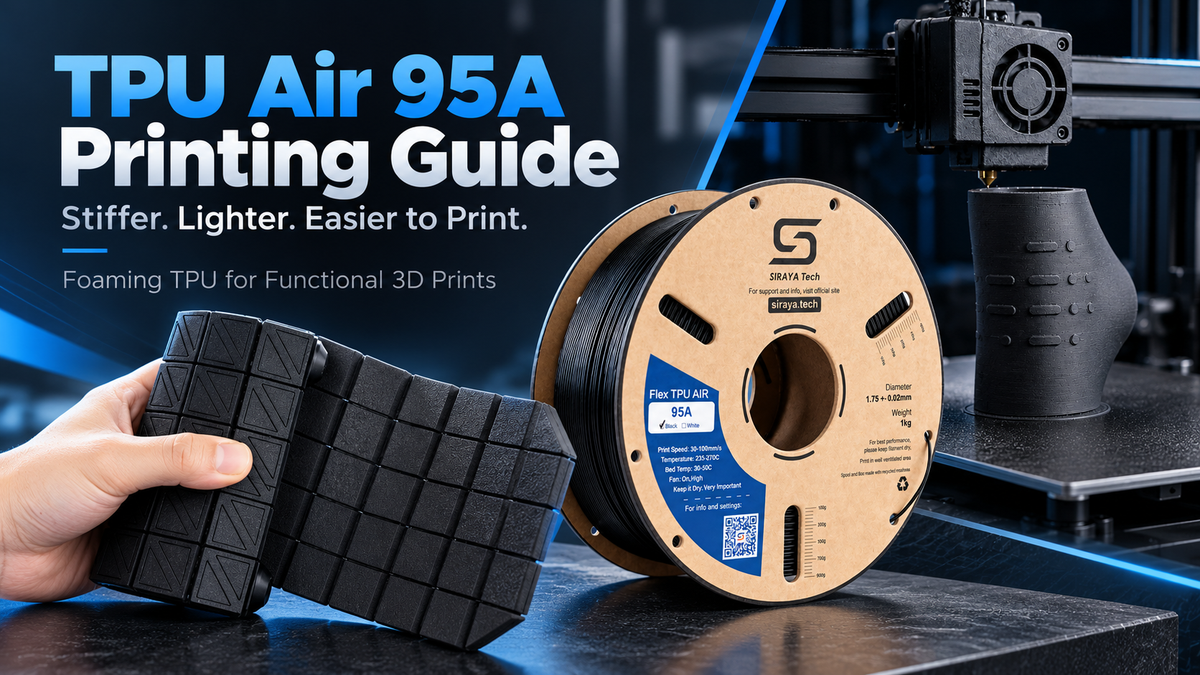
TPU Air 95A is an actively foaming TPU that starts out as a firm 95A material and lets you dial the printed part softer and lighter with nozzle temperature.
It is the stiffer sibling of TPU Air 85A: the same foam feel and fabric-like matte surface, but with more shape-holding firmness, a filament that feeds more easily, and more room to print faster.
If your part needs to stay in shape instead of flexing around the wearer, this is the foaming TPU to start with.
This guide covers what changes from the 85A, how temperature sets hardness and weight, and the settings to start from.
What is TPU Air 95A?
Like every foaming TPU, TPU Air 95A expands as it melts in the hotend, and the printed part keeps those tiny gas cells.
The practical results are:
- Up to 50% lighter than standard TPU. The filament has a density of about 1.15 g/cm³, and printed parts can come down to about 0.54 g/cm³ at the highest foaming temperature.
- Adjustable hardness. Printed hardness runs from a firm 95A before foaming to about 75A when you print hot.
- A matte, fabric-like finish instead of the glossy look of solid TPU.
- A stiffer filament before it melts. TPU Air 95A is engineered for better pre-print stiffness, which helps it feed more reliably across a wide range of FDM printers, including many Bowden setups.
Because the foaming is active, it forms during printing, and nozzle temperature becomes the main control. Print cooler for a denser, firmer part. Print hotter for a lighter, softer one.
What changes from TPU Air 85A
TPU Air 95A uses the same basic print recipe as TPU Air 85A: the same temperature range, bed range, fan speed and no-retraction approach. The main difference is the stiffer base material.
| Feature | TPU Air 85A | TPU Air 95A |
|---|---|---|
| Base feel | Softer, more flexible | Firmer, holds its shape better |
| Feeding | Soft filament; slow speeds help | Stiffer filament that is easier to push through the extruder |
| Speed | Start slow, tune up | Same starting range, with more headroom for speed |
| Best for | Parts that bend and move with the body | Parts that need to hold a defined shape |
For the full side-by-side comparison, including a cosplay armor example, read TPU Air 95A vs 85A: Faster, Stiffer, or Softer?
Temperature controls hardness, weight and flow
This is the table to bookmark. Use it as a starting point, then calibrate for your printer, nozzle and extruder.
| Nozzle Temp | Approx. Shore Hardness | What You Get | Starting Flow Rate |
|---|---|---|---|
| 230–240°C | ~90A | Denser, stiffer, less foaming, less texture | ~85–90% |
| 250°C | ~85–80A | Balanced foaming, noticeably lighter and softer | ~60–70% |
| 260°C | ~80–75A | Good balance of foaming and softness | ~50–55% |
| 270°C | ~75A | Maximum foaming, lightest, softest, most texture | ~50–55% |
Exact hardness and the best flow rate depend on your printer, nozzle size and extruder.
260°C is a useful starting point because it balances weight reduction, softness, and print reliability for many applications.
Print settings that work
| Setting | Value |
|---|---|
| Nozzle temperature | 230–270°C; start around 260°C |
| Nozzle diameter | 0.4–0.8 mm; 0.4 mm works well |
| Bed temperature | 30–45°C |
| Build surface | Glass, PEI, BuildTak or Wham Bam PEX. PVP glue stick on glass or smooth steel is a good starting point. |
| Cooling fan | 100% |
| Print speed | 30–60 mm/s to start; capable machines may handle up to 150 mm/s with careful tuning |
| Retraction | Off; set distance and speed to 0 |
Bed heat helps adhesion, but too much can make parts harder to remove. TPU can also bond very strongly to PEI, so use a release layer such as PVP glue stick, Magigoo or a light mist of Windex, and let the bed cool fully before pulling the part.
Validated profiles for supported printers are available on our Print Settings Download page .
Why TPU Air 95A is easier to feed
Soft filament is hard to push. It can squash and buckle in the path between the extruder and hotend, which is one reason most TPU guides recommend slower print speeds.
TPU Air 95A starts out firmer, so it holds its shape more consistently through the extruder. That is why it works on many Bowden setups and has more headroom for speed than softer TPU Air grades.
Start at 30–60 mm/s. With careful tuning, capable machines may reach up to 150 mm/s.
In one real-world test from our TPU Air 95A vs 85A article, Willow Creative printed a shoulder pauldron in TPU Air 95A at 150 mm/s and reported that it printed much faster and weighed about half as much. This was one printer and one model, not a guaranteed speed.
Practical speed depends on your extruder, hotend, nozzle, temperature, model and foaming settings.
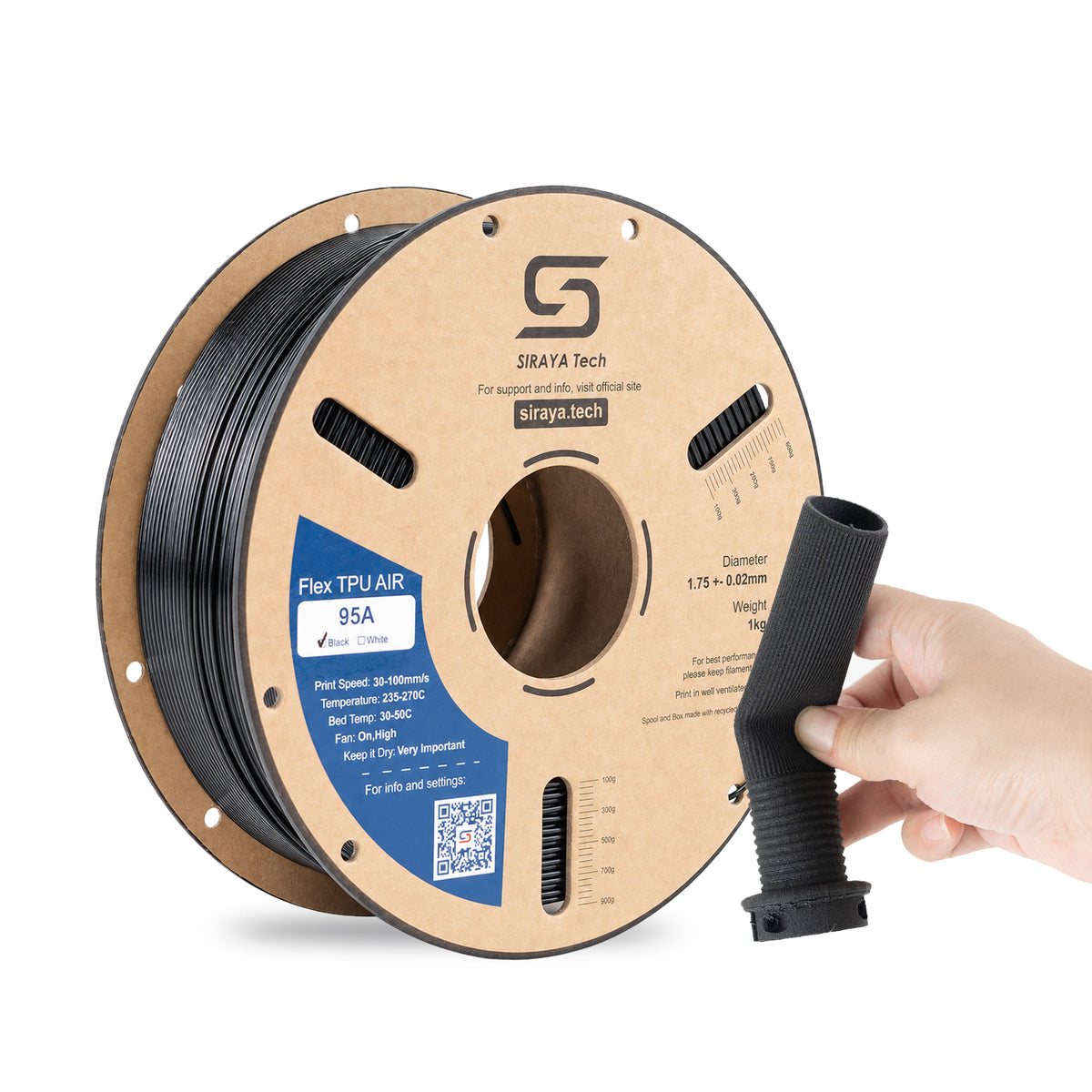 |
Flex TPU Air 95A FilamentA stiffer foaming TPU designed for lightweight, shape-holding flexible parts with easier filament feeding. SHOP NOW |
Flow and retraction
Flow
The filament expands when heated, so you must reduce flow. The hotter you print, the lower the flow generally needs to be.
Print a small test cube, for example 20 × 20 × 10 mm, at your target temperature. Start with the flow rates in the table above, then adjust until you get clean surfaces without gaps or excessive bulging.
Over-extrusion is one of the most common causes of poor foaming TPU prints.
Retraction
Turn it off. A foaming filament expands in the hotend, which causes oozing during travel moves, and standard retraction settings are often ineffective.
To keep the print cleaner:
- Print one model at a time instead of spreading several parts across the plate.
- Use sequential printing if your slicer supports it and the model is suitable.
- Choose models with continuous extrusion paths and minimal jumping between features.
Everyday 95A TPU habits that still apply
TPU Air 95A is still a 95A TPU, so many of the habits you already use for standard 95A TPU still help.
- Keep the filament dry. Wet TPU is a common cause of bubbles, stringing and weak layers.
- Take the first layer slowly. A slower, wider first layer such as 20 mm/s at 120% line width can help adhesion.
- Clean and level the bed. Wash with soap and water, then wipe with IPA.
- Prefer a short, direct filament path. Print slowly the first time you try a new model.
If you are choosing between TPUs more broadly, see our 95A vs 98A TPU guide , TPU Shore Hardness guide and How to Print with TPU .
Drying and storage
TPU Air 95A is hygroscopic, and moisture hurts the foaming as well as the overall print quality, causing bubbles, stringing and poor layer adhesion.
- When you open it: put the spool into a filament dryer or sealed container with plenty of active desiccant. Aim for below 15% humidity and print from the dry box when possible.
- Storage: return the spool to its resealable bag with the desiccant pack and seal it tightly.
- If you suspect moisture: dry it in a dedicated filament dryer or convection oven at 70–80°C for 4–6 hours before printing.
Troubleshooting
- Bubbles, stringing or weak layers: dry the spool first.
- Bulging walls, rough surface or gaps: reduce flow, or lower nozzle temperature slightly.
- Oozing and strings between features: make sure retraction is off, print one model at a time, and reduce unnecessary travel moves.
- Part is too stiff or heavy: raise nozzle temperature in 10°C steps and reduce flow to match.
- Part is too soft or floppy: lower the temperature. At 230–240°C it prints at about 90A with the least foaming.
- Print will not stick: clean and level the bed and slow down the first layer.
- Print will not release: use PVP glue stick as a release agent and allow the bed to cool completely.
What to print with TPU Air 95A
TPU Air 95A works well for wearables, grips, sports gear, insoles, toys, protective covers, lightweight functional parts, custom padding and vibration dampeners.
Because 95A is the stiffer foaming option, it is especially useful when the printed part needs to keep its shape.
Good examples include:
- Shoulder armor
- Helmets
- Cosplay shells
- Large props
- Thin-wall lightweight parts
- Tall geometry that would wobble in a softer material
For the science behind foaming TPU and a wider range of uses, see our Foaming TPU Guide .
Which TPU should you pick?
| Material | Best For |
|---|---|
| TPU Air 95A | Light, matte and firm parts that need to hold their shape |
| TPU Air 85A | Softer padding, straps and body-contact parts that need to bend |
| Flex TPU 95A | Solid, non-foamed durable flexible parts where weight is not a priority |
Frequently asked questions
What is TPU Air 95A?
TPU Air 95A is an actively foaming TPU. It starts as a 95A material and foams during printing, so parts can come out up to 50% lighter than standard TPU with a soft, fabric-like matte finish. Nozzle temperature controls how much it foams.
How hard is TPU Air 95A?
Printed hardness runs from about 95A before foaming down to about 75A at the highest foaming temperature. At 230–240°C expect roughly 90A, at 260°C roughly 80–75A, and at 270°C roughly 75A.
What temperature should I print TPU Air 95A at?
Use 230–270°C. Start at 260°C and adjust. Go cooler for a firmer, denser part and hotter for a lighter, softer one.
Is TPU Air 95A easier to print than TPU Air 85A?
It is stiffer before it melts, so it feeds more easily and works on a wide range of printers, including many Bowden setups. You still need to reduce flow, turn retraction off, and keep the filament dry.
How fast can I print TPU Air 95A?
Start at 30–60 mm/s. Capable machines may handle up to 150 mm/s with careful tuning, but your extruder, hotend and model all affect what is practical.
Why do I need to lower the flow rate?
The filament expands as it heats. Starting flow is about 85–90% at 230–240°C and about 50–55% at 260–270°C. Calibrate with a small test cube.
Should I turn retraction off?
Yes. Foaming TPU can ooze during travel moves and standard retraction is often ineffective, so set retraction distance and speed to 0 and minimize unnecessary travel.
How do I dry TPU Air 95A?
Use a filament dryer or convection oven at 70–80°C for 4–6 hours. After drying, store the spool sealed with desiccant and keep humidity below 15%.
Ready to print?
Start with TPU Air 95A and the recommended print settings above, then tune temperature and flow for your printer and model.
Questions? Contact support@siraya.tech.