
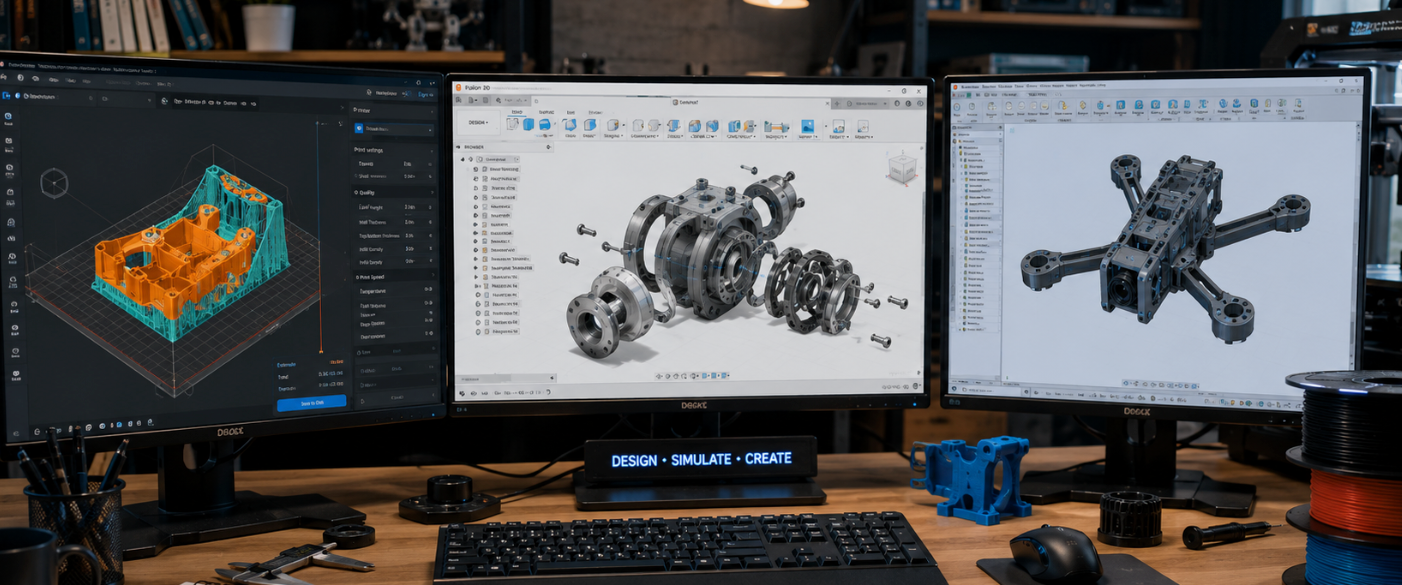
The best free CAD software for 3D printing is Tinkercad for beginners, Fusion 360 (free personal plan) for functional parts, and FreeCAD for open-source parametric design. Onshape is best for cloud and collaboration, and Blender is best for organic art and miniatures. All five are free for personal use and export print-ready STL files.
Finding the best free CAD software for 3D printing means matching a tool to your skill level without spending a cent. CAD software lets you design precise, custom parts and turn them into printable STL files.
The good news: today's free tools are powerful enough for almost any hobby project, from a simple phone stand to a working mechanical part.
This guide compares the top free options by ease of use, features, and best use case, then shows how your design pairs with the right material so your finished print looks and works exactly as planned.
- Easiest free start: Tinkercad runs in your browser and gets you a printable file in 30 minutes.
- Best free all-rounder: Fusion 360's free personal plan offers pro-level parametric modeling.
- Best open-source: FreeCAD gives full parametric CAD with no account and no cost, ever.
- Best for art: Blender is a free powerhouse for organic shapes, jewelry, and miniatures.
- Pair design with material: use precise FDM filament for parts and detailed UV resin for fine models.
Why use CAD software for 3D printing?

CAD stands for computer-aided design. It lets you build accurate 3D models with exact measurements, which is essential for parts that must fit together or do a job.
You can download ready-made models online, but if you want to create your own design or fix precise dimensions, you need CAD. Once your model is done, you export it as an STL or 3MF file, run it through a slicer, and print.
Most CAD tools for printing use parametric modeling, which records each step so you can change a number and update the whole model instantly.
How to choose free CAD software?
The right free tool depends on what you build and how much time you have to learn. Keep these points in mind:
- Ease of use. Beginners want a simple, intuitive interface with good tutorials.
- Modeling style. Parametric CAD is best for precise parts; mesh and sculpting tools are best for organic shapes.
- Watertight output. Your model must be a solid body with no gaps, or it will fail to print.
- Export formats. Confirm it saves STL, OBJ, or 3MF so your slicer can read it.
- License limits. Many free plans are for personal use only, so check before selling your prints.
- Hardware needs. Browser-based tools run on almost any computer, including a Chromebook.
| Software | Best for | Skill level | Modeling type | Free plan |
|---|---|---|---|---|
| Tinkercad | Complete beginners | Beginner | Block building | Fully free |
| Fusion 360 | Functional parts | Intermediate | Parametric | Free (personal) |
| FreeCAD | Open-source CAD | Intermediate | Parametric | Fully free |
| Onshape | Cloud & collaboration | Intermediate | Parametric | Free (public) |
| Blender | Art, miniatures, jewelry | Advanced | Mesh / sculpt | Fully free |
| SketchUp Free | Quick simple models | Beginner | Push-pull | Free (web) |
| OpenSCAD | Coders, exact repeats | Advanced | Script-based | Fully free |
The Best free CAD Software for beginners

1. Tinkercad: easiest free starting point
Tinkercad is the most beginner-friendly CAD tool, full stop. It runs in your browser with no download, and its drag-and-drop blocks let you build name tags, phone stands, organizers, and simple parts in minutes.
It exports straight to STL and OBJ, so every slicer opens your file. As a beginner tool it struggles with precise curves and complex parts, but it covers the large majority of what most new makers want to print.
2. SketchUp Free: quick and simple modeling
SketchUp Free is a browser tool loved for fast push-pull modeling. It is easy to learn for quick concepts and simple shapes.
The catch for printing is that it is a surface modeler, so it can create non-watertight models that need fixing before they print. Extensions help, but expect some cleanup on complex jobs.
The Best free CAD for 3D Printing functional parts

1. Autodesk Fusion 360: best free all-rounder
Fusion 360's free personal plan is the strongest free option for parts that must fit, align, or move.
You build with measurements and constraints, so changing one number updates the whole model. It has a user-friendly layout, cloud storage, built-in tutorials, and even basic simulation.
The trade-off is a real learning curve and reliance on the cloud, but for hobbyists it offers near pro-level power at no cost.
2. FreeCAD: best open-source CAD
FreeCAD gives you full parametric, dimension-driven modeling with no account and no cost forever. It is ideal for functional parts and a strong free path into engineering design, and it runs on Windows, Mac, and Linux.
The interface is less polished and the learning curve is steeper than paid tools, but the large community and zero price make it a favorite for tinkerers who want full control.
3. Onshape: best free cloud CAD
Onshape runs entirely in the browser, so it works on almost any device and is great for collaboration.
Its free plan offers full parametric modeling and exports STL and STEP files. The catch is that the free plan makes your projects public, so it is best for personal designs you do not mind sharing.
If you want to design on the go from any computer, Onshape is hard to beat.
4. OpenSCAD: best for coders
OpenSCAD is unusual: instead of drawing shapes, you write simple code to generate them. That makes it powerful for designs that need exact, repeatable dimensions, and a favorite among programmers.
It has a steep learning curve if you are new to scripting and limited visual tools, so it suits a specific kind of maker rather than a general beginner.
Best free CAD for art and miniatures
1. Blender: free powerhouse for organic models
Blender is free, open-source, and capable of almost anything, from sculpting characters to detailed figurines and jewelry.
Its 3D Print Toolbox flags non-manifold edges and bad overhangs before you export, which saves failed prints.
It shines for organic shapes and fine detail, but it has a steep learning curve and no parametric workflow, so it is not the fastest route for precise mechanical parts.
SOLIDWORKS for Makers is not free, but at about $10 a month it is close, and it teaches industry-standard skills. If you want a professional tool on a tiny budget, it is worth knowing about, though the options above cost nothing.
Match your CAD tool to the right material
Free software gets you a clean file; the material decides how the finished print looks and lasts.
Here is how common free CAD workflows pair with the right Siraya Tech resin or filament.
| If you design in | You are likely printing | Recommended material |
|---|---|---|
| Fusion 360 / FreeCAD | Functional parts, brackets, gears | Fibreheart Engineering Filament |
| Onshape | Mechanical parts that must fit | PETG / CF Filament |
| Blender | Miniatures & figurines | Fast ABS-Like Resin |
| Blender (jewelry) | Rings, pendants for casting | Cast – Castable Resin |
| Tinkercad | Toys, keychains, simple prints | Standard UV Resin |
| Any CAD (flexible) | Phone cases, grips, wearables | Flex TPU Filament |
| Any CAD (high-temp) | Parts near heat, tooling | Sculpt – High Temp Resin |
| Any tool (display) | Smooth, layer-line-free pieces | Aegis Coating System |
Export formats you need to know
Before you model, make sure your free CAD tool exports a format your slicer accepts:
- STL — the universal slicer format. Best for simple, single-color prints.
- 3MF — stores geometry plus color and material data in a smaller file. Best for multi-color prints.
- STEP — uses precise math curves, not mesh. Best for functional parts that must fit exactly.
- OBJ — stores color and texture data. Good for artistic prints, though some slicers may not support it.
Practical tips for free CAD beginners
- Start simple. Learn how models behave in Tinkercad before moving to heavier tools.
- Level up by need. Move to Fusion 360 or FreeCAD when you need precise, parametric parts.
- Match tool to printer. Fine detail suits resin (SLA); strong functional parts suit FDM filament.
- Always check watertightness. Use a tool with a repair feature, or fix files in your slicer before printing.
- Watch the license. If you plan to sell prints, confirm the free plan allows commercial use.
Pick your free tool and start designing
The best free CAD software for 3D printing is the one that fits your skill and project, not the one with the most features.
Beginners should start with Tinkercad, makers who need precise parts should use Fusion 360's free plan or FreeCAD, and artists should sculpt in Blender.
Every tool here is free for personal use, so try a few and keep what clicks. Just remember the design is only half the job.
Pairing your model with the right Siraya Tech resin or filament is what turns a clean file into a sharp, strong, finished print.
Frequently asked questions
What is the best free CAD software for 3D printing beginners?
Tinkercad is the best free choice for beginners. It runs in your browser, needs no download, and uses simple drag-and-drop blocks, so you can make a printable STL file in about 30 minutes. When you outgrow it, Fusion 360's free personal plan is the natural next step, offering parametric tools that grow with your skills while still costing nothing.
Is Fusion 360 really free?
Yes, Fusion 360 has a free plan for personal, non-commercial use. It includes the core 3D modeling, parametric design, and basic manufacturing tools most hobbyists need, with some advanced features and export options limited compared to the paid version. If you plan to sell what you make, you will need a paid license, so check the current terms before starting a business.
What is the best free CAD software that is fully open-source?
FreeCAD and Blender are the top fully open-source options. FreeCAD is best for parametric, dimension-driven parts and engineering designs, while Blender is best for organic, artistic models like figurines and jewelry. Both are completely free with no personal-use restrictions, large communities, and regular updates, which makes them popular for makers who want full control and no account.
Can I use free CAD software to sell 3D prints?
It depends on the license. Fully open-source tools like FreeCAD, Blender, and OpenSCAD allow commercial use, so you can sell your designs or prints. Many free plans, such as Fusion 360 personal and Onshape free, are for personal use only or make your work public. Always read the current license terms before selling anything you design.
Do I need CAD software or a slicer to 3D print?
You need both, but for different jobs. CAD software creates or edits the 3D model and exports an STL or 3MF file. A slicer then turns that file into G-code, the instructions your printer follows. If you only want to print a model you downloaded, you can skip CAD and go straight to a slicer. To design your own parts, start with CAD.