
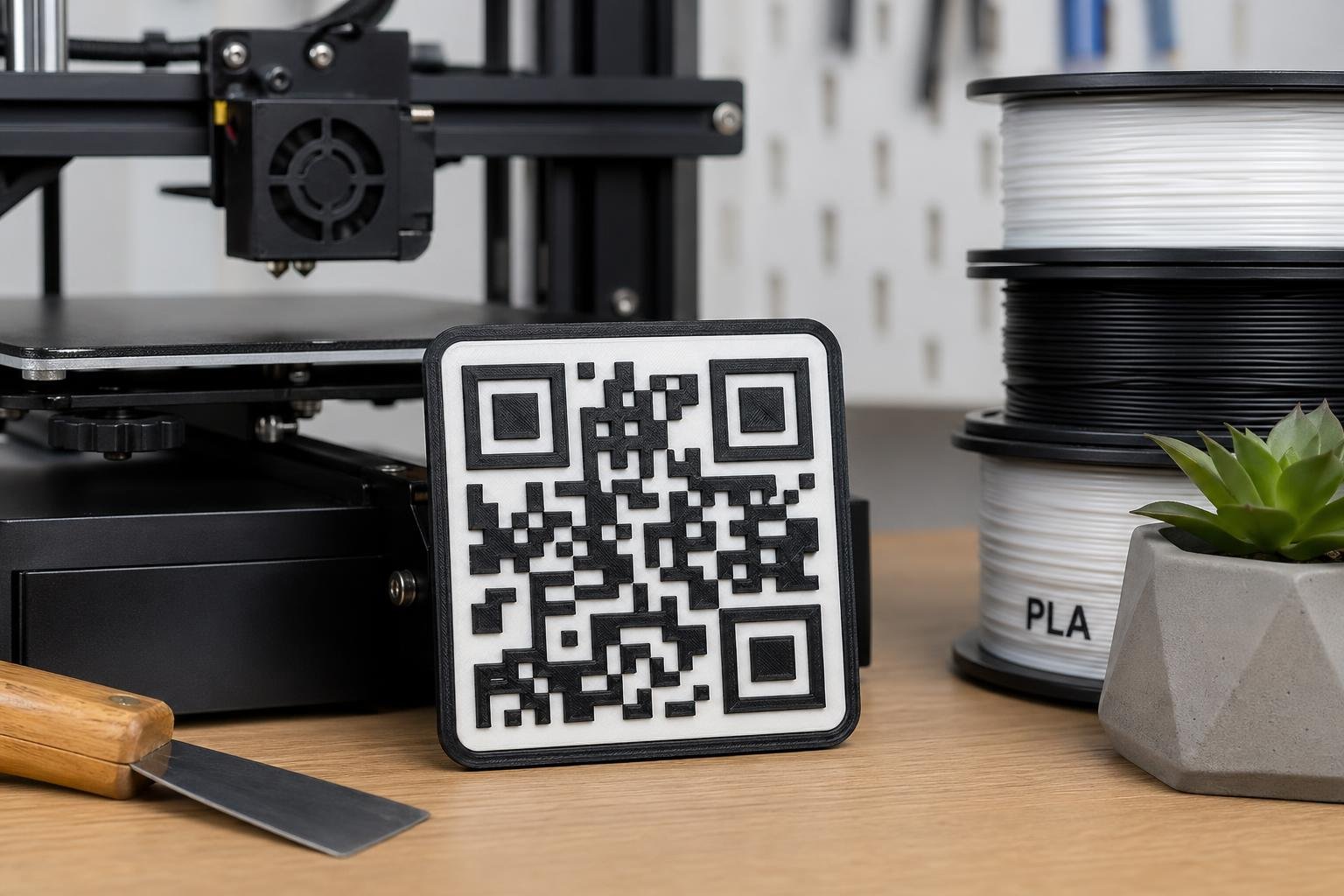
QR codes are everywhere, from product packaging to WiFi signs and business cards. But can you really turn one into a physical object using a 3D printer? Yes, you can, and it can scan just like a printed QR code when done correctly.
If you want to learn how to 3D print a QR code that works the first time, keep reading for a simple step by step guide.
▦Key Takeaways
- •You can 3D print a scannable QR code using an FDM or resin printer
- •High contrast, proper size, and clean edges are critical for scanning
- •Converting a QR code from SVG to STL is the easiest workflow
- •Embossed or engraved designs both work when sized correctly
- •Material choice, layer height, and nozzle size affect scan accuracy
What Makes a 3D Printed QR Code Scannable

A QR code works because of contrast and spacing. Your phone reads the small square modules and the quiet zone around them to decode information.
When learning how to 3D print a QR code, you must preserve:
- Sharp square edges
- Clear contrast between raised and recessed areas
- Enough size for phone cameras to detect details
- A clean quiet zone around the code
If any of these are distorted during printing, the code may not scan.
Tools and Materials Needed to 3D Print a QR Code
Before starting, gather the right tools and materials. The process is simple, but preparation makes a big difference in scan success.
Essential Tools for How to 3D Print a QR Code
- Online QR code generator
- 3D modeling software such as Tinkercad or Fusion
- SVG to STL converter or direct import feature
- Slicer software like Cura or PrusaSlicer
- Calibrated 3D printer
Best Materials for a Scannable QR Code
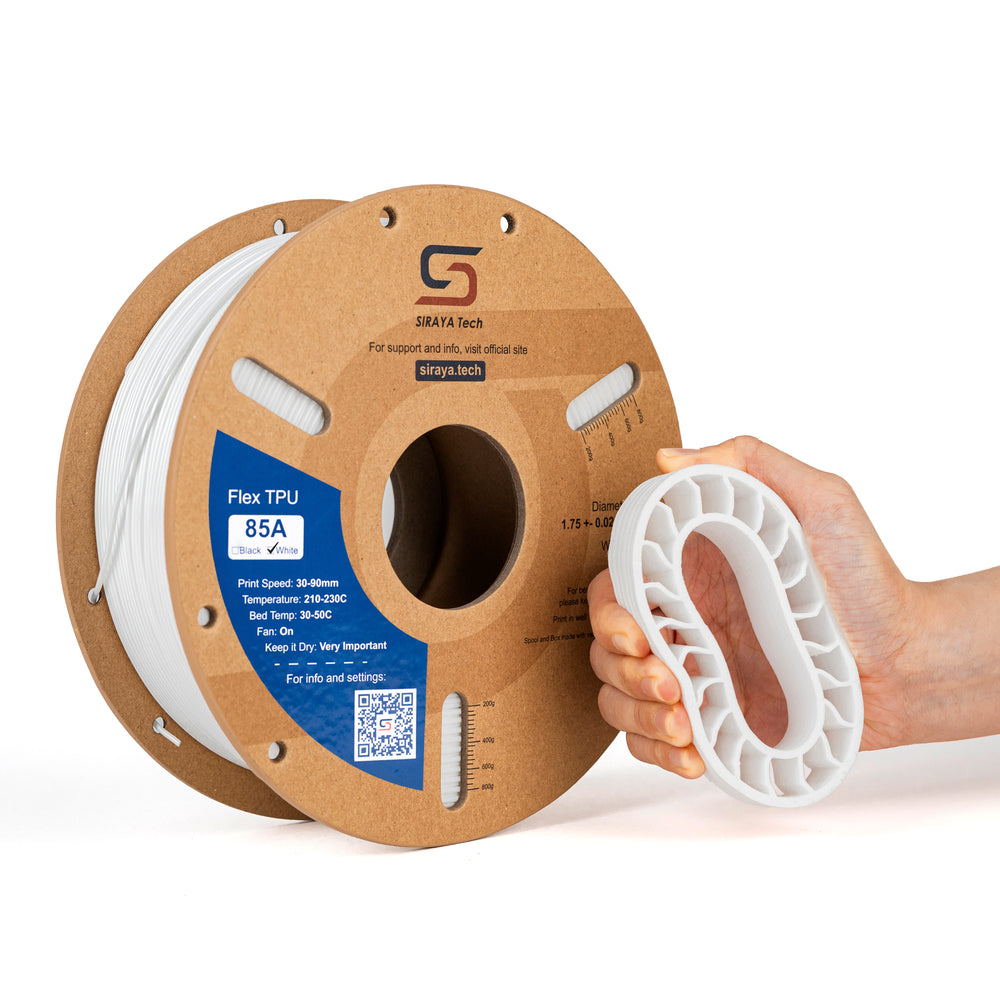
Material affects surface finish and contrast. For FDM printing, PLA is easy to use and gives sharp edges. PETG is more durable, and carbon fiber infused options like PETG-CF provide a matte finish and reduced warping, which helps maintain detail.
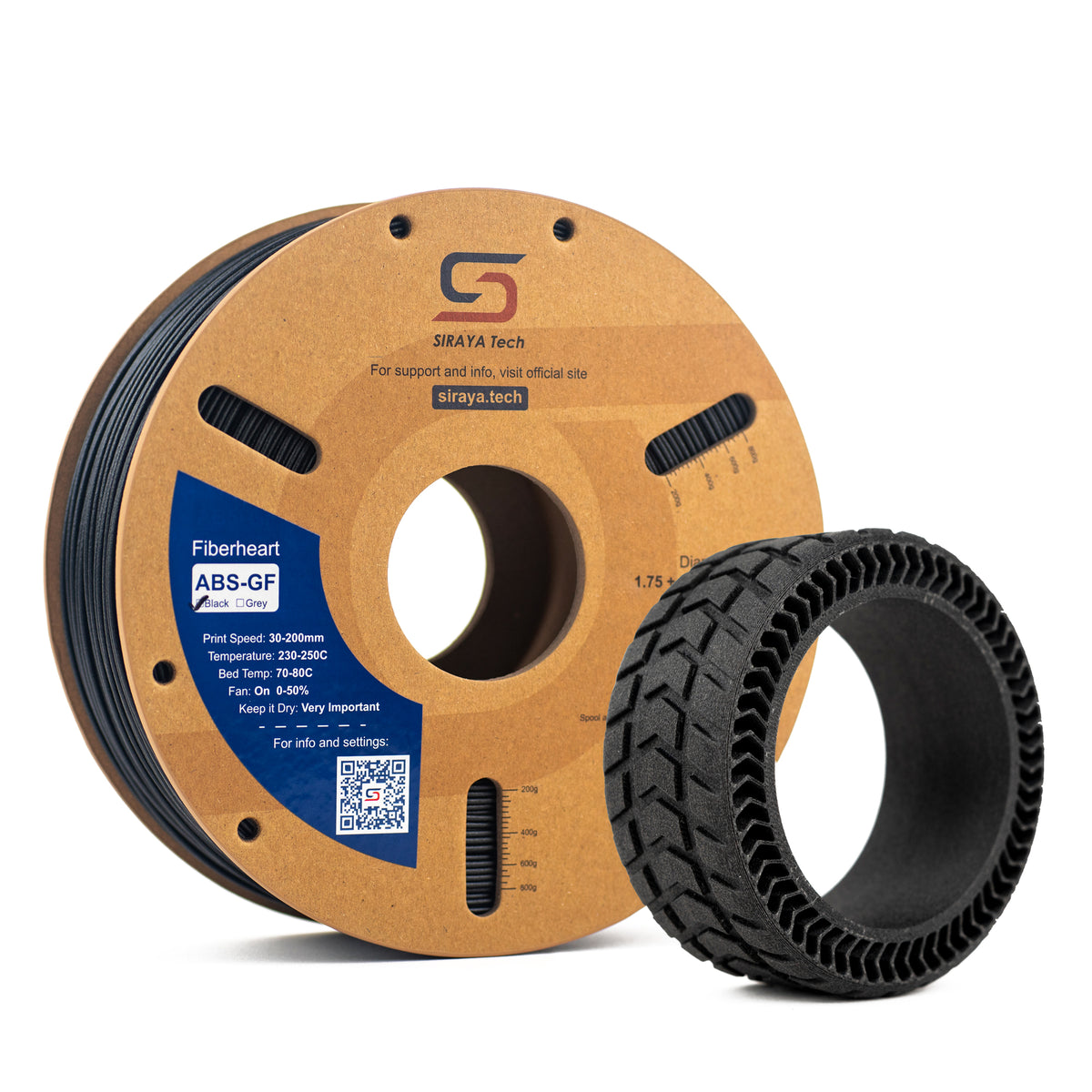
If you need stronger outdoor durability, ASA based filaments such as ASA-GF can resist UV exposure. For impact resistance, ABS-GF or ABS-CF offer stiffness and strength.
For high detail, resin printing can produce extremely sharp modules. High quality resins from brands like Siraya are known for strong layer bonding and smooth surfaces. Flexible blends such as tenacious resin can also be mixed for durability. If you plan to create molds or embed QR codes in soft parts, platinum silicone crafting materials can help produce clean results.
Explore Siraya Materials for Sharp, Durable Prints
Shop engineering filaments and flexible materials for detailed QR tags, outdoor labels, durable signs, and functional 3D printed parts.
Explore Siraya Materials →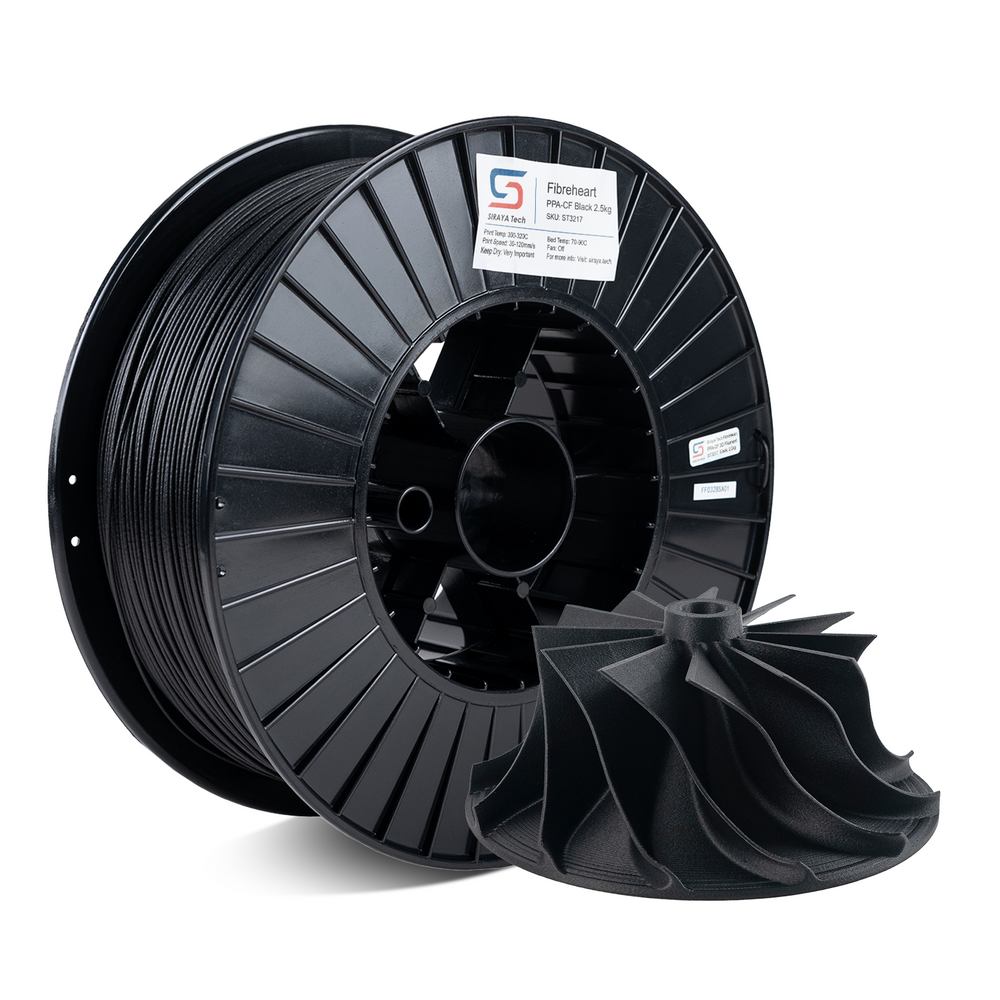

Step by Step Guide on How to 3D Print a QR Code

This section breaks down how to 3D print a QR code from start to finish. Follow each step carefully to ensure your final print scans correctly.
Step 1: Generate a High Resolution QR Code
Start with a reliable QR code generator. Enter your URL, WiFi credentials, text, or contact info.
For best results:
- Choose high error correction level
- Export as SVG for clean scaling
- Avoid decorative styles
- Test the QR code on your phone before moving forward
Using SVG keeps the edges sharp when converted to 3D.
Step 2: Convert the QR Code to a 3D Model
Import the SVG file into your 3D modeling software. Most programs automatically convert it into editable shapes.
Then:
- Extrude the black squares to 1 to 2 mm height
- Keep a base plate thickness of at least 2 mm
- Maintain a flat and even background
You can choose between:
- Embossed QR code where squares are raised
- Engraved QR code where squares are recessed
Both work well. Raised designs often print cleaner on FDM machines.
Export the finished model as an STL file.
Step 3: Scale the QR Code Correctly
Size matters when learning how to 3D print a QR code.
General guidelines:
- Minimum total width of 40 to 50 mm for simple codes
- Larger sizes for more complex data
- Keep module size above 0.8 mm if using a 0.4 mm nozzle
If printed too small, phone cameras cannot detect the grid properly.
Step 4: Slice With the Right Print Settings
Your slicer settings directly affect sharpness.
Recommended FDM settings:
- Layer height 0.12 to 0.2 mm
- Slower print speeds for detail
- 100 percent infill for small tags
- Proper bed leveling
For resin printing:
- Follow manufacturer exposure settings
- Ensure proper curing time
- Clean thoroughly before testing
Siraya resin materials are known for consistent curing and fine detail, which is helpful for intricate QR modules.
How to 3D Print an Existing QR Code
Sometimes you already have a PNG or JPEG file. You can still convert it into a printable model.
Steps:
- Convert image to SVG using a vector tool
- Clean up stray pixels
- Ensure strong contrast in the design
- Import into CAD and extrude
If the original image is blurry or low resolution, recreate it using a generator instead. Clean vector files produce the best 3D results.
Best Filament and Resin Choices for 3D Printing QR Codes
Choosing the right material improves clarity and durability. Different projects may require different performance properties.
PLA and PETG for Everyday QR Code Prints
PLA prints easily and keeps corners sharp. PETG offers more flexibility and impact resistance. PETG-CF variants provide a matte surface that reduces glare, which can help scanning in bright light.
ABS and ASA for Outdoor QR Codes
ABS based materials such as ABS-GF and ABS-CF provide added strength. ASA-GF performs better in sunlight and harsh weather conditions.
Resin for Ultra Detailed QR Codes
Resin printers capture very small module details. High quality resin options, including tough and flexible blends, allow you to create durable tags or product labels.
If embedding QR codes into molds or casting projects, platinum silicone crafting materials ensure accurate replication of the design.
How to Improve Scan Accuracy When 3D Printing a QR Code
Even a well printed code may fail if contrast or spacing is off. Small adjustments can greatly improve reliability.
Use Strong Color Contrast
Phones detect contrast between light and dark areas.
Options include:
- Print in black and white filament
- Pause at layer height for color swap
- Paint raised squares with acrylic paint
- Use dual extrusion printing
Dark modules on a light background usually scan best.
Keep a Clean Quiet Zone
The quiet zone is the empty border around the QR code. Without it, scanners may struggle.
- Leave at least 4 modules of blank space around edges
- Avoid adding text too close to the code
Print on a Flat Surface
Surface texture affects scanning.
- Print flat on the bed
- Avoid heavy top layer patterns
- Reduce stringing and blobs
Calibrated extrusion ensures square edges remain sharp.
Common Problems When Learning How to 3D Print a QR Code
Even small errors can cause scanning failure. Here are the most common issues and solutions.
The QR Code Is Too Small
If your code does not scan:
- Increase overall size
- Increase module thickness
- Use finer layer height
Rounded Corners or Blurry Edges
This often happens due to over extrusion or high temperatures.
- Lower print temperature slightly
- Calibrate extrusion multiplier
- Slow down print speed
Poor Contrast
Single color prints can fail in bright light.
- Add paint to raised areas
- Use filament change technique
- Choose matte materials to reduce reflection
Creative Ways to Use 3D Printed QR Codes
Once you understand how to 3D print a QR code, you can apply it in many projects.
Popular uses include:
- WiFi access signs for homes or offices
- Business card tags
- Product authentication labels
- Inventory tracking plates
- Educational tools
- Keychains and pet ID tags
You can also embed QR codes directly into larger 3D prints for branding or digital instructions.
Mastering How to 3D Print a QR Code
Learning how to 3D print a QR code is simple once you understand contrast, size, and clean modeling. With the right settings and materials, you can create durable, scannable codes for personal or business use. Experiment with different filaments, resins, and finishes to find what works best for your project.
For more helpful guides and practical tips about 3D printing, discover resources from Siraya. High quality materials such as advanced 3D printing filaments, durable resins for 3D printing, tenacious blends, castable resins, and platinum silicone crafting products can help you create stronger, sharper, and more reliable prints for every project.
Frequently Asked Questions About How to 3D Print a QR Code
How to 3D print an existing QR code?
Start by converting your image file into an SVG format for clean scaling. Import it into 3D modeling software and extrude the design into a raised or recessed pattern. Export it as an STL file, then slice and print it with proper size and contrast. Always test the physical print with your phone after printing.
Can a 3D printer print a QR code?
Yes, both FDM and resin 3D printers can print QR codes. The key factors are resolution, correct scaling, and strong contrast. Smaller nozzles and lower layer heights improve clarity. Resin printers often produce finer detail for compact codes.
Can you 3D print a scannable QR code?
Yes, a 3D printed QR code can be fully scannable when designed correctly. It must have sharp edges, enough size, and good color contrast. Testing the digital version before printing helps prevent errors. Proper slicing settings also improve readability.
Can I print my own QR code?
Yes, you can generate a QR code for free using an online tool. After exporting it as an SVG, convert it into a 3D model and print it. Make sure the final size is large enough to scan easily. Adding contrast or painting details can improve results.