
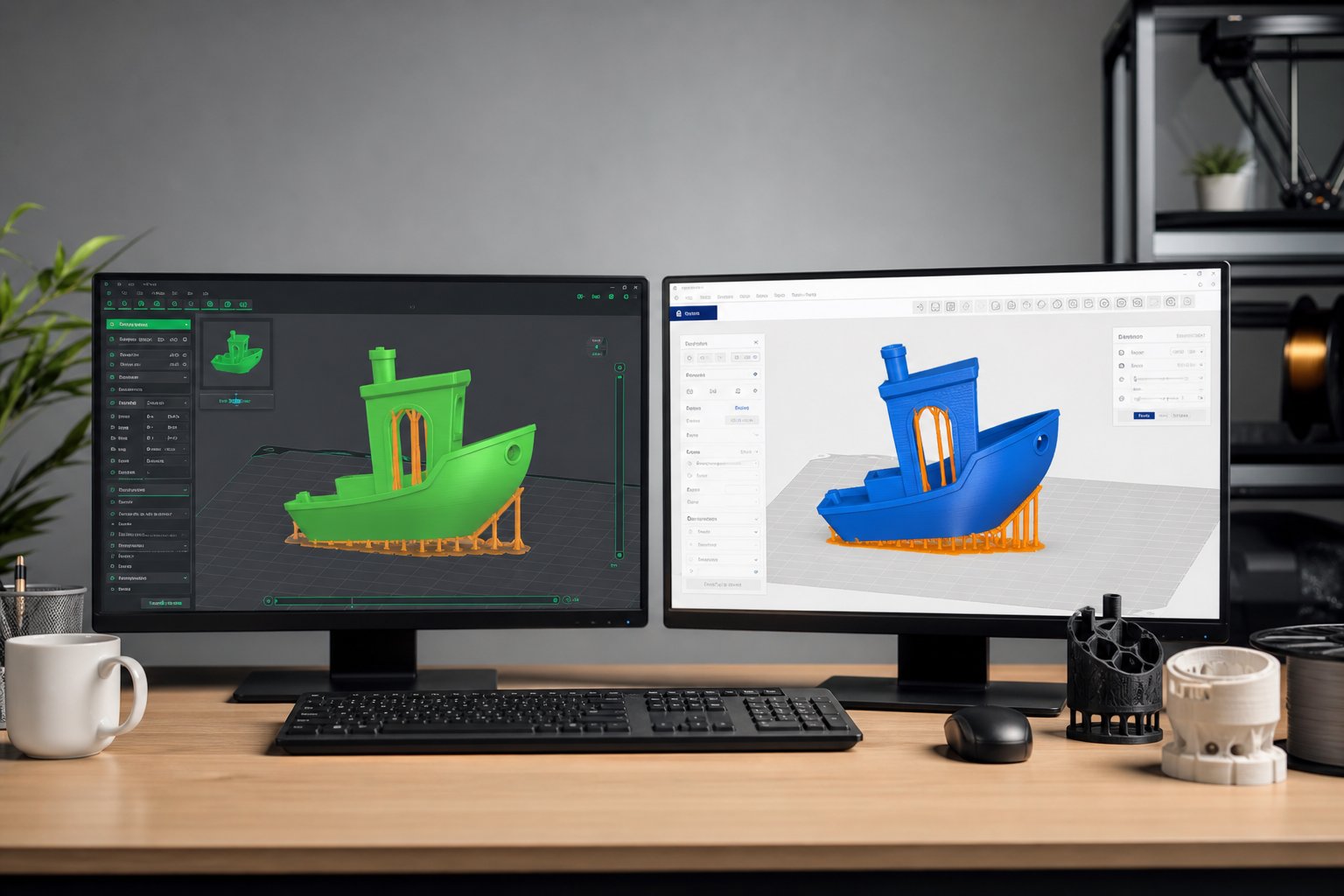
Two slicers dominate the conversation right now, and the OrcaSlicer vs Cura debate keeps coming up for a reason: both can produce excellent prints, but they get you there in very different ways. One leans into structured calibration and modern speed tuning, the other leans into accessibility and a massive plugin ecosystem. Picking the wrong one for your printer and workflow means more failed prints than you should be dealing with.
This guide breaks down where each slicer actually wins, where the difference barely matters, and how to match the right one to your printer, your filament or resin, and your skill level.
⚙️Key Takeaways
- •OrcaSlicer offers advanced calibration tools and strong optimization for modern, high-speed printers
- •Cura is beginner friendly and has one of the largest communities and plugin ecosystems
- •Print quality depends more on proper settings and material choice than the slicer name alone
- •OrcaSlicer shines with tuning and performance, while Cura excels in accessibility and compatibility
- •Your choice should match your printer type, experience level, and workflow goals
OrcaSlicer vs Cura: Core Differences That Matter

Both slicers turn a 3D model into printable G-code, but they approach the job differently. Understanding the design philosophy behind each one makes the rest of this comparison much easier to apply to your own setup.
Development Background and Philosophy
Cura has been around longer and built a strong open source ecosystem around accessibility, broad printer support, and a beginner-friendly experience.
Where OrcaSlicer Comes From
Orcaslicer is a fork of Bambu Studio, which itself is based on PrusaSlicer's slicing engine. It emphasizes performance, calibration, and precision, and it evolves quickly with features aimed at high-speed, modern printers.
Interface and Ease of Use
Cura uses a clean layout with recommended and custom modes, so beginners can start printing without touching a single advanced setting. OrcaSlicer puts powerful tuning controls directly in the interface. It can feel more technical at first, but experienced users tend to appreciate the extra control and the built-in calibration tools.
| Feature | OrcaSlicer | Cura |
|---|---|---|
| Ease of Use | Moderate learning curve | Very beginner friendly |
| Built-In Calibration | Yes, structured tests | Mostly manual tuning |
| Plugin Marketplace | Limited | Large marketplace |
| High-Speed Optimization | Strong focus | Supported, less automated |
| Community Size | Growing | Very large |
| Printer Compatibility | Wide, modern focus | Very broad, legacy support |
| Default Profiles | Performance oriented | Stability oriented |
Neither slicer is universally better. Each one wins in different areas depending on what you actually need from it.
Print Quality Comparison in OrcaSlicer vs Cura
Print quality is the biggest factor in the OrcaSlicer vs Cura discussion. Small changes in slicing strategy affect surface smoothness, strength, and reliability more than most people expect.
Surface Finish and Detail Accuracy
Orcaslicer often produces very consistent layers once properly calibrated. Its flow and pressure tuning tools help reduce visible layer lines and sharpen detail.
How Cura Compares on Finish
Cura also delivers strong results with optimized settings. For common materials like PLA, PETG, or ABS, both slicers can land on similar surface quality once calibrated correctly.
Reinforced Materials Change the Equation
If you print reinforced materials like PETG-CF or ABS-CF, flow and temperature tuning becomes critical in either slicer. Carbon fiber blends improve stiffness and reduce warping, while glass fiber blends add strength for functional parts.
Supports and Overhang Performance
Both slicers offer tree-style supports and customizable support density. OrcaSlicer provides structured support tuning through its calibration models, while Cura offers flexible support settings backed by community-tested profiles. Either way, support removal and overhang quality depend more on cooling and layer height than on the slicer itself.
Speed and Performance in OrcaSlicer vs Cura
Printing faster without losing quality is a major focus in modern 3D printing, and this is where the OrcaSlicer vs Cura gap becomes more noticeable.
Slicing Speed and Model Processing
Both slicers handle standard STL and 3MF files efficiently. Complex, high-polygon models may slice a touch faster or slower depending on your system resources and configuration. Layer preview tools in both programs help you spot travel moves and potential problem areas before you commit to a print.
High-Speed Printing Capabilities
OrcaSlicer includes built-in calibration features such as flow rate tuning, temperature testing, pressure adjustment, and speed optimization tools. These matter most on high-speed printers, where small extrusion errors get amplified fast.
Where Cura Fits for Speed
Cura supports high-speed printing too, but it often leans on manual adjustment and plugins rather than the structured, built-in calibration tools OrcaSlicer ships with by default. For moderate-speed setups, Cura remains highly reliable and stable.
OrcaSlicer vs Cura Printer and Material Compatibility
Compatibility often decides which slicer people actually settle on. Your printer's hardware and firmware play a bigger role here than most comparisons admit.
Supported Printers
| Category | OrcaSlicer | Cura |
|---|---|---|
| Entry-Level Printers | Supported | Supported |
| High-Speed Printers | Strong optimization | Supported |
| Custom Firmware | Supported | Supported |
| Large Format Printers | Supported | Widely supported |
Cura has broader preset support for older and budget printers. OrcaSlicer integrates more smoothly with performance-focused machines, and Siraya even publishes ready-made OrcaSlicer printer profiles for QIDI printers running Fibreheart filaments.
Material Support
Both slicers handle PLA, PETG, ABS, and TPU without issue. For engineering materials like ABS-GF or ASA-GF, temperature stability and bed adhesion matter more than which slicer you're running. Dialed-in slicing profiles help reduce cracking and layer separation either way.
For resin printing, material choice carries just as much weight as slicer settings. Tough blends similar to Siraya's Tenacious resin improve impact resistance, while castable resin supports detailed mold and jewelry work. High quality resin improves surface clarity and durability regardless of which slicer prepared the file.
Match Your Slicer Settings to the Right Material
Whichever slicer you run, the material you load decides how forgiving your settings need to be. Browse Siraya's filaments and resins to pair with your OrcaSlicer or Cura profile.
Explore Siraya Materials →


Calibration and Tuning in OrcaSlicer vs Cura

Calibration tools directly affect print reliability. Even small adjustments here can cut down on stringing, under-extrusion, and weak layer bonding.
Built-In Calibration in OrcaSlicer
OrcaSlicer includes guided calibration prints for flow rate and temperature. These models make it easy to visually compare results and fine-tune settings without guessing, which appeals to anyone who wants consistent results across different filaments.
Manual Tuning in Cura
Cura allows deep parameter control and supports manual calibration plus plugins, but it doesn't ship with as many structured, built-in calibration tools by default. Advanced users can still get excellent results, but beginners may need extra time to learn the right adjustments.
Regardless of which slicer you choose, using high quality materials cuts down on troubleshooting. Consistent filament diameter and stable resin chemistry both improve print reliability on their own.
OrcaSlicer vs Cura for Different User Types
Different users value different features. Your experience level and project type should drive the decision more than general reputation.
Best for Beginners
Cura is usually easier for beginners because it offers simple recommended settings, has widely available tutorials, and ships with stable, reliable default profiles. For casual hobby printing, it gives you a smooth starting point with very little setup.
Best for Advanced Users
OrcaSlicer fits users who enjoy detailed calibration, print at higher speeds, switch materials frequently, or want more structured tuning tools. Advanced users working with reinforced filaments or specialty materials tend to appreciate the deeper control it offers.
Real-World Results: OrcaSlicer vs Cura
Side-by-side testing shows both slicers can produce high quality prints once settings are optimized. Benchy tests, overhang trials, and stringing checks typically reveal small differences rather than dramatic ones.
Performance gaps show up more clearly in high-speed environments or heavily tuned setups. OrcaSlicer tends to show an edge in fine-tuned speed prints, while Cura delivers consistent results across a much wider range of printers.
Material quality plays a large role too. Carbon fiber filament improves rigidity and reduces warping, glass fiber blends add structural strength, tough resin increases impact durability, and platinum silicone supports mold making and flexible crafting projects. Matching the right slicer settings to the right material usually matters more than switching software in the first place.
Pros and Cons of OrcaSlicer vs Cura
OrcaSlicer Pros
- Built-in calibration tools
- Strong high-speed optimization
- Modern performance features
- Detailed tuning control
OrcaSlicer Cons
- Slightly steeper learning curve
- Smaller plugin ecosystem
Cura Pros
- Beginner-friendly interface
- Large community support
- Extensive plugin marketplace
- Broad printer compatibility
Cura Cons
- Advanced tuning may require manual effort
- Slower rollout of some cutting-edge performance tools
Conclusion
The choice between OrcaSlicer vs Cura comes down to whether you prioritize advanced calibration or beginner-friendly simplicity. Both slicers can produce excellent prints when paired with proper settings and quality materials, so let your printer setup, experience level, and workflow preferences make the call rather than internet opinions.
For more slicer comparisons and printing guides, explore the rest of the Siraya Tech blog. When you're ready to put either slicer to work, browse Siraya's filaments and resins to pair the right material with your settings.
Frequently Asked Questions
Is OrcaSlicer the best slicer overall?
There is no single best slicer for everyone. The right choice depends on your printer, material, and experience level. Some users prefer strong calibration tools, while others value simplicity. Both slicers can produce excellent results when properly configured.
Is Cura still the best slicer in 2026?
Cura remains one of the most widely used slicers because of its ease of use and broad compatibility. It continues to receive updates and community support, and many hobbyists and professionals rely on it daily. It is still a strong and reliable option.
Is OrcaSlicer easier to use than Cura?
For beginners, Cura is usually easier to start with thanks to its simplified interface. Orcaslicer includes more detailed calibration tools that can feel advanced at first, but they tend to streamline tuning once you've learned them.
Does OrcaSlicer work with Ender 3?
Yes, Orcaslicer supports many popular entry-level printers, including the Ender 3. Proper profile configuration matters for good results, and you may need to fine-tune settings based on any hardware upgrades.
Is OrcaSlicer better for high-speed printing?
Orcaslicer includes built-in tools designed for tuning high-speed prints, which can improve consistency at faster settings. Cura can handle high-speed printing too with the right adjustments, but the final result still depends on calibration and hardware capability.